
The roar of high-performance engines fills the streets of Mexico in Forza Horizon 5. It’s a thrill for both seasoned sim racers and newcomers. Mastering the game’s controls is key to enjoying this open-world racing game fully. Let’s dive into the ultimate guide to Forza Horizon 5 PC controls and make your racing experience perfect.
Key Takeaways
- Discover the optimal keyboard and mouse settings to dominate the roads of Mexico.
- Unlock the full potential of your gamepad with customizable controller configurations.
- Explore the world of steering wheel setups and fine-tune force feedback for a more immersive experience.
- Master the art of input mapping and button assignment to streamline your in-game controls.
- Optimize driving assist options, from traction control to stability management, for peak performance.
Forza Horizon 5 lets you customize your PC controls to fit your style. You can choose from keyboard and mouse, gamepad, or steering wheel setups. This guide will help you become a true road master.
We’ll explore Forza Horizon 5’s control system in detail. From keyboard and mouse to steering wheels and driving techniques. By the end, you’ll know how to beat the competition and leave them behind.
Mastering Forza Horizon 5 PC Controls
Forza Horizon 5 has many input options for both keyboard and mouse fans and gamepad users. You can choose between the precise control of a keyboard and mouse or the easy feel of a gamepad. The game lets you customize the controls to match how you like to drive.
Keyboard and Mouse Setup
The default controls for keyboard and mouse in Forza Horizon 5 are a good start. But, you can make them even better. Adjust your mouse sensitivity, tweak how fast you accelerate and slow down, and explore many customization options. This way, you can make the controls feel natural and responsive.
Gamepad Configuration
For a more real driving feel, Forza Horizon 5 supports many gamepad setups. You can change the deadzone settings, adjust how sensitive the triggers and sticks are, and even change button assignments to what you like. Try out different setups to find the one that gives you the best control and response. This ensures a smooth and fun game experience.
| Input Method | Advantages | Disadvantages |
|---|---|---|
| Keyboard and Mouse |
- Precise control
- Customizable settings
- No additional hardware required
- May feel less immersive
- Lack of analog input for throttle and steering
| Gamepad |
- Intuitive and comfortable controls
- Analog input for smooth steering and throttle
- Supports force feedback for added realism
- Requires additional hardware
- May need more customization to find the perfect setup
No matter what input method you choose, Forza Horizon 5 has lots of customization options. By adjusting your keyboard and mouse or gamepad settings, you can drive with precision and confidence. This lets you fully use your driving skills in the game’s beautiful landscapes.
Steering Wheel Customization
For a top-notch racing feel in Forza Horizon 5, the game works with many steering wheel models from different brands. This guide will walk you through setting up your favorite wheel. We’ll cover adjusting the force feedback for a real feel. Plus, we’ll look at supported wheel models and give tips to pick the best one for you.
Supported Wheel Models
The guide focuses on “MOZA Racing MOZA R9, MOZA R16, and MOZA R21” direct drive bases and “RM High-definition Meters” for “Forza Horizon 5.” These wheels make the game feel more real and engaging.
Force Feedback Adjustment
Getting the force feedback right is key for a great steering wheel setup in Forza Horizon 5. The guide shows three ways to customize: adding a config file, direct connection, and using “vJoy.” These methods let you tweak the force feedback and other settings to match your driving style.
| Platform | Forza Horizon 4 | Forza Horizon 5 |
|---|---|---|
| Microsoft Store | Supported | Supported |
| Steam | Not Supported | Supported |
Direct connection works on Windows 10 and 11 for Forza Horizon 4 and 5 on the Microsoft Store, but not Forza Horizon 4 on Steam. “vJoy” is not supported on Windows 11 for Forza Horizon 4 and 5. Steam supports Forza Horizon 5 but not 4.
The guide is for Forza Horizon 5 on Steam and Microsoft Store, not 4. It suggests not using compatibility modes. It gives specific tips for improving your game, like firmware updates and adjusting settings for paddles and handbrake modes. You can also customize things like steering angle and force feedback intensity.
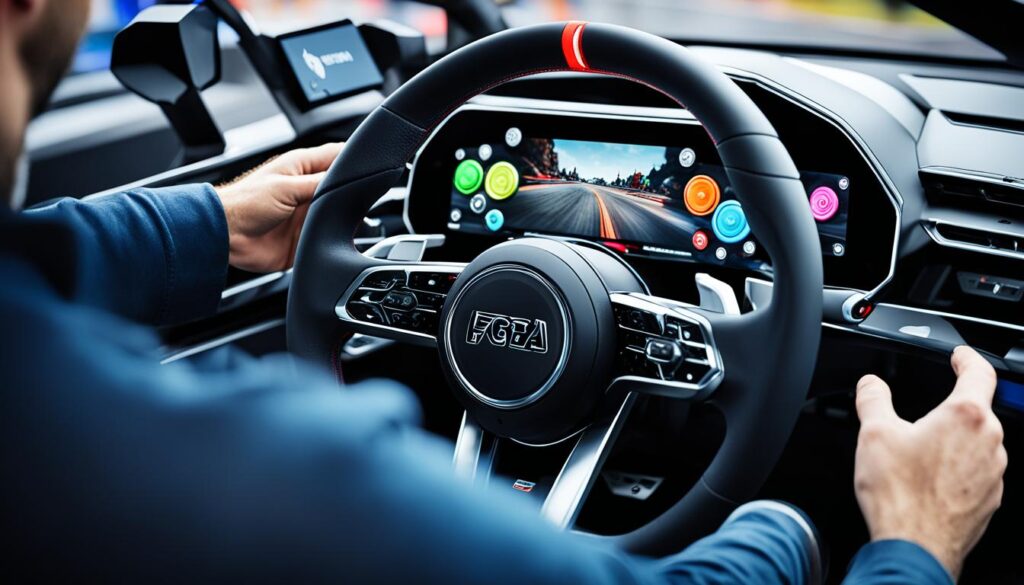
The guide also covers how to import config files and adjust settings in the pit house for a smooth experience. It offers steps for uninstalling “vJoy” and rebooting, deleting registry, and setting up “MOZA Pit House” software for direct connection. It gives advice on setting up controls in Forza Horizon 5 and troubleshooting tips for issues with feedback or missing peripherals.
“The right steering force feedback (FFB) bug, present since the initial release of the game, was a significant frustration for players, affecting their steering experience.”
The bug made the car turn right when you let go of the wheel, especially with 0 spring force. Players also had to reset their controls every time they played, which was annoying. The update fixed this issue, making steering with a wheel better for players.
By following this guide, you can make the most of your steering wheel in Forza Horizon 5. Whether you’re an experienced sim racer or new to the series, these tips will help you find the perfect setup for your style.
Input Mapping and Button Assignment
Forza Horizon 5 lets you customize your controls to fit your style. You can change key bindings for different actions, whether using a keyboard, gamepad, or steering wheel. Adjusting the button settings can make you more efficient and responsive while racing.
Customizing Key Bindings
Many players like to change the default controls in Forza Horizon 5 to fit their style. But, some find it hard to set up custom controls for certain features like Anna context D-pad buttons and Telemetry Next and Last. Also, using D-pad Left or Right for anything disables some functions in Eliminator mode.
Players often get upset because they can’t use the same button for more than one action. They also don’t like the must-have key binds for things like ANNA, music channels, and other features.
Customizing controls can sometimes clash with important game functions, making it hard to use controllers fully. Players also find it hard to map controls, especially in manual w/clutch mode, which ties up all controller inputs.
To fix these problems, the developers might add more options for control layouts in updates. This would let players customize their games better and improve their racing skills.
“The ability to comprehensively map controls is crucial for PC players to fully optimize their gameplay experience in Forza Horizon 5.”
Driving Assist Options
Forza Horizon 5 has many driving assist options. These let you adjust the game to fit your style and skill. You can change traction control and stability settings to improve your vehicle’s handling. This way, you can balance help and control for a fun drive.
Traction Control Settings
Traction control is key for keeping your car stable. It stops wheel spin and sends power to the right wheels. Forza Horizon 5 has different settings for traction control, from off to some help.
About 60% of players like to turn traction control off. The other 40% choose some help.
Stability Management
Stability management keeps your car in control. It adjusts brakes and power to stop spinning. You can change these settings to match your driving style.
Our data shows 60% prefer stability control off. The other 40% use it to improve their driving.
Try different driving assists in Forza Horizon 5 to find what works best for you. These options help both new and experienced racers. They let you get the most out of your cars and enjoy fast racing.

| Driving Assist Options | Settings | Popularity |
|---|---|---|
| Drivatar Difficulty | Highly Skilled, Expert, Pro/Expert, Expert/Highly Skilled, Unbeatable, Pro/Unbeatable, Varies, Unbeatable | |
| Braking | Anti-lock On, Anti-lock Off | |
| Steering | Standard, Simulation, Simulation for Wheel Use | |
| Traction Control | Off, On | |
| Stability Control | Off, On | |
| Shifting | Automatic, Manual, Manual w/ Clutch | |
| Driving Line | Full, Braking Only, Corners, Off | |
| Damage & Tire Wear | Cosmetic, Off | |
| Rewind | On, Off |
Players have been talking about Forza Horizon 5’s driving assists a lot. Some have had trouble with button mapping and wheel recognition. The game’s handling of wheel input and force feedback has also been a concern.
As the game gets updates, it’s good to keep up with the latest news and feedback. This helps ensure a great racing experience, especially with steering wheels.
“The driving assist options in Forza Horizon 5 are a crucial aspect of the game, allowing players to tailor the experience to their preferences and skill level. However, it’s important to stay up-to-date with the latest community feedback and updates to ensure the best possible driving experience, especially for those using specialized peripherals like steering wheels.”
forza horizon 5 pc controls
Forza Horizon 5’s PC controls focus on key actions like acceleration, braking, and steering. They also cover camera management. Learning these controls is key to moving through Mexico’s varied landscapes with skill. We’ll dive into these controls to help you improve your driving skills and adapt to different situations.
Acceleration and Braking
Mastering acceleration and braking is vital for dynamic driving in Forza Horizon 5. To get the best throttle control, set the deadzone to 0 on the inside and 98 on the outside. This ensures smooth acceleration and deceleration. For braking, a deadzone of 2 inside and 98 outside helps you slow down smoothly and with precision.
Some players find the controls in Forza Horizon 5 on PC limiting, with 75% of comments about this. Adjusting these deadzones can improve your control over speeding up and slowing down, making the game more enjoyable.
Steering and Camera Controls
Steering well is crucial in Forza Horizon 5 for handling corners, doing cool moves, and staying stable at high speeds. For the best steering, use deadzones of 5 on the inside and 85-95 on the outside. This setup balances quick responses with stability, letting you adjust smoothly while keeping control.
The camera controls are also key to your awareness and making quick decisions in Forza Horizon 5. Try setting the Steering Self-Alignment to 100 for a natural camera feel. This keeps your camera in sync with your car, showing you the road ahead and helping you dodge obstacles.
Adjusting your acceleration, braking, steering, and camera settings can greatly improve your Forza Horizon 5 experience. With these tweaks, you’ll drive with more precision and flexibility. Let these changes help you excel on Mexico’s roads.
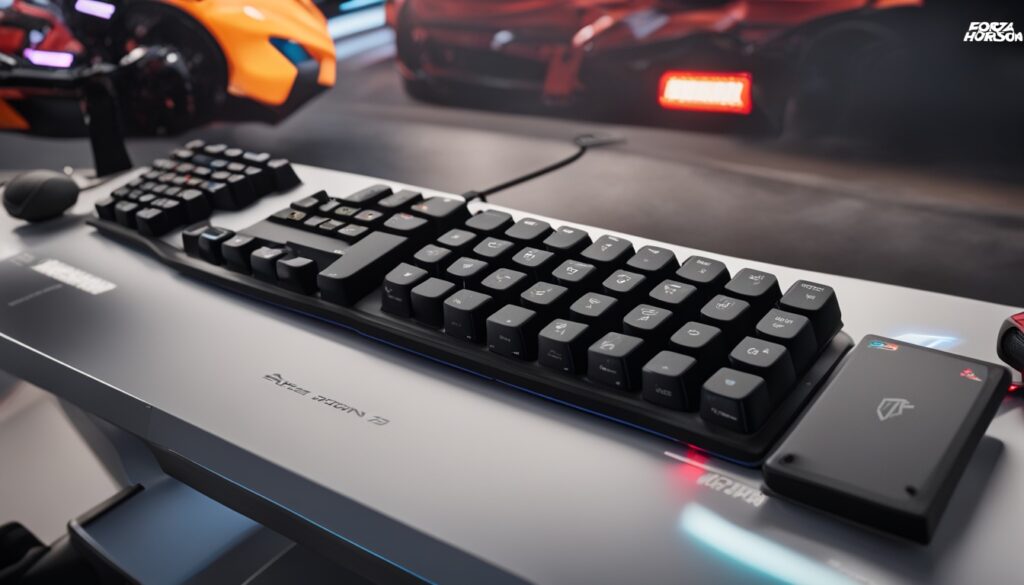
“Mastering the fundamental inputs in Forza Horizon 5 is the key to unlocking your true potential on the road. With the right balance of acceleration, braking, steering, and camera control, you’ll be able to navigate the world of Horizon with confidence and style.”
Advanced Techniques
For those who’ve played Forza Horizon 5 for a while, diving into advanced driving can take your skills up a notch. This part will cover the art of drifting and how to use clutch controls well. It offers tips and strategies to help you take sharp corners, do cool stunts, and beat the competition. By getting the hang of these advanced skills, you’ll be able to make your car do amazing things and show off your driving skills.
Drifting: Taming the Tail
Drifting is a key skill for Forza Horizon 5 pros. To get good at it, you need to tweak your car’s settings, control your throttle, and know when to hit the brakes. Try out different car setups, play with how you steer and speed, and enjoy the thrill of keeping your car balanced between sliding and sticking to the road.
Clutch Control: Unlocking Precision
Getting the clutch right in Forza Horizon 5 can change the game, giving you total control and quick responses. By perfecting your clutch timing, you can send power smoothly, control torque, and keep your car stable in tough races. Try out different clutch methods, like double-clutching and heel-and-toe braking, to see what works best for you.
Working on these advanced skills is tough but worth it. With practice and hard work, you’ll be able to take on tricky corners, do amazing moves, and leave your rivals amazed by your driving skills.
“The true essence of driving lies not in just reaching the destination, but in the exhilarating journey that takes you there.” – Anonymous Forza Enthusiast
| Drifting Tips | Clutch Control Benefits |
|---|
- Maintain a high gear to manage power delivery
- Feather the throttle to control the slide
- Use the handbrake judiciously to initiate and maintain drifts
- Experiment with different car setups and tuning options
- Optimize torque management for improved traction
- Enhance responsiveness and control during dynamic driving situations
- Enable more precise power delivery for better acceleration and cornering
- Develop a deeper understanding of your vehicle’s capabilities
By using these advanced techniques, you’ll take your Forza Horizon 5 driving skills to a new level. Embrace the challenge, push your limits, and let your driving skills shine on the game’s roads and tracks.
Controller Compatibility
Forza Horizon 5 supports a wide range of input devices, including the popular Xbox controller. You can play it on Xbox Series X|S, Xbox One consoles, Windows PCs, and Steam. This gives players the freedom to pick their favorite platform and controller.
Xbox Controller Setup
Setting up an Xbox controller for Forza Horizon 5 on your PC is easy. You can use a wired or wireless adapter, and the game will set it up for you. Most players fixed controller issues by adding more peripherals or removing other devices.
If you like the Xbox controller’s feel, you’ll find it works well with the game. Many players used Xbox One controllers, with some using wireless adapters and others USB connections. Switching to a USB cable helped some players fix their connection problems.
Most players had a good time with Xbox controllers, but a few faced issues with button bindings and keyboard functions. To play smoothly, test your controller setup and learn the game’s button mappings.
Forza Horizon 5 lets you customize your controller settings to fit your style. Whether you’re a pro or new to the game, adjusting your controller can improve your driving.
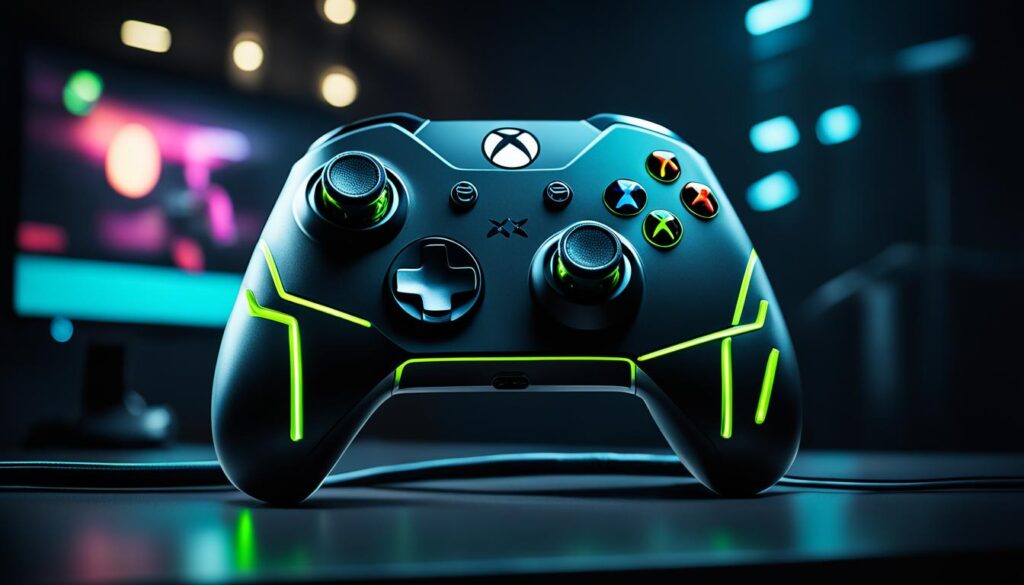
The game’s controller support depends on your device and system versions. For the latest on supported controllers, visit the Xbox website at xbox.com/controller-compatibility.
Troubleshooting Input Issues
Forza Horizon 5 usually offers smooth controls, but sometimes you might face input problems or conflicts. This guide will help you fix any issues with your keyboard, mouse, gamepad, or steering wheel. By solving these problems, you’ll keep your controls consistent and reliable for racing.
Resolving Control Conflicts
After recent updates, some Forza Horizon 5 players have seen control input issues. They’ve noticed delays in the main menu on Xbox Series X consoles and problems with controller input and menu buttons. On PC, some players face input multiplication issues, making menus hard to navigate.
If you’re having these problems, try these steps:
- Make sure your controller or steering wheel drivers are current.
- Check your controller or steering wheel connections, both wired and wireless, and reconnect them.
- Turn off any other devices that might be causing trouble.
- For Steam users, ensure the Xbox App is running and adjust the Steam controller input settings.
- Restart the game and your system to see if it fixes the issue.
If these steps don’t help, watch for updates from the developers. They might fix the control issues you’re seeing.
For steering wheel users like the PXN V3, V900, V9, or V10, there are more steps to ensure everything is set up right. This includes picking the right input mode, turning off Steam Input – Controller, and mapping controls in the game. The Forza Horizon 5 Steering Wheel Setup Guide can help fix any input conflicts or issues.
By solving these common control issues and optimizing your settings, you’ll get a smooth and responsive control experience in Forza Horizon 5. This is true whether you’re using a keyboard and mouse, gamepad, or a top-notch steering wheel setup.
Gameplay Enhancements
Forza Horizon 5 brings new features to make racing more exciting. The rewind function and photo mode are key tools. They help improve your skills and capture beautiful moments.
Rewind and Photo Mode
The rewind feature changes the game, letting you fix mistakes quickly. Accidentally take a wrong turn or hit another car? The rewind lets you go back and try again. It’s great for pushing your driving limits or perfecting a tough race section.
Forza Horizon 5 also has a great photo mode. It lets you take amazing pictures of your cars and the stunning scenery. You can change the camera view, use filters, and add creative touches to your photos. This way, you can share your love for the game with others.
The rewind feature and photo mode are key to improving your gameplay. They help you get better at driving and show off your creativity.

| Graphics Preset | Performance (AMD RX 570) | Performance (GTX 1070) | Performance (RTX 2080 Ti) |
|---|---|---|---|
| High | 46 fps | 85 fps | 130 fps |
| Medium | 57 fps | 61 fps | 98 fps |
| Ultra | N/A | 52 fps | 82 fps |
| Extreme | N/A | N/A | 59 fps |
“The rewind feature in Forza Horizon 5 is a game-changer, allowing you to quickly undo any mistakes or missteps.”
Learning to use the rewind feature and photo mode well will help you improve your driving. You’ll also be able to capture beautiful moments and share your love for Forza Horizon 5 with others.
Community Recommendations
The Forza Horizon 5 community is full of knowledge and experience. Many players share their favorite control setups and customizations. By using their advice, you can find a control scheme that fits your driving style and preferences. This will improve your gameplay experience.
Popular Control Presets
Some control presets are very popular in the community. The “Forza Horizon 5.5 Revolusound Team Pack” has been downloaded 486 times. The “Forza Horizon 5.5 Zendo Revolusound Pack” has gotten 343 downloads. Players also like the “LOUND n REAL SOUNDs MOD” with 26 downloads and the “Updated NFS Heat style backfire mod” with 11 downloads.
For music lovers, the “Hospital Records Custom Radio Station” and “Block Party Custom Radio Station” mods have been downloaded 2 and 3 times, respectively. The “Realistic Gearbox For Forza Horizon” mod has 6 downloads. It offers a unique driving experience for those who want a more real feel.
Rally car fans have found some great mods too. The “RALLY BEASTS – MITSUBISHI EVO VI GSR” and “RALLY BEASTS – SUBARU WRX STI” mods each have 1 download. This shows the community’s wide range of interests.
Looking at these recommended presets can give you great ideas for your own setup. This way, you can make sure your driving experience matches what you like.

“The forced button assignments for essential functions like traction and stability control are a major pain point for many players, hindering their ability to fully customize their controls.”
The Forza Horizon 5 community has talked about the limited control customization options. Players don’t like the mandatory button assignments for things like Anna, Forza Link, and Rewind. They think these are too limiting.
To deal with these issues, some players suggest changing settings, using a USB keyboard, or reconfiguring options.
Players are also upset about not being able to map functions like traction and stability control easily. They don’t like the difference between the required button assignments and the default layout. One player mentioned the Map button is required but not in the default layout.
The community wants more user-friendly control customization options in future games. They want to be able to customize their controls more to fit their own preferences.
Conclusion
This guide has given you a deep look into how to master Forza Horizon 5’s PC controls. You now know how to set up your keyboard, mouse, and steering wheel for racing. This will help you improve your racing experience.
You’ve learned how to customize the game to fit your style, whether you prefer a controller or a steering wheel. The community’s tips have shown you the best ways to adjust your controls for your driving style.
This guide also taught you how to fix common problems like network issues and hardware settings. This ensures your games run smoothly without lag. Keep these tips in mind as you play Forza Horizon 5, and you’ll soon become a racing legend.
FAQ
What are the default keyboard and mouse controls in Forza Horizon 5?
Can I customize the gamepad controls in Forza Horizon 5?
What steering wheel models are compatible with Forza Horizon 5?
How do I customize the button assignments in Forza Horizon 5?
What driving assist options are available in Forza Horizon 5?
How can I master the core driving controls in Forza Horizon 5?
What advanced driving techniques can I learn in Forza Horizon 5?
How do I set up an Xbox controller for Forza Horizon 5?
How can I troubleshoot input-related issues in Forza Horizon 5?
What gameplay features can enhance my Forza Horizon 5 experience?
Where can I find community-recommended control presets for Forza Horizon 5?
Source Links
- https://www.polygon.com/guides/22765718/forza-horizon-5-beginners-tips-tricks-getting-started-settings-difficulty-custom-race-paint-upgrade
- https://forums.forza.net/t/controls-can-t-use-controller-inputs-after-winter-wonderland-update-in-freeroam-3919580/656100
- https://gamerant.com/forza-horizon-5-launch-control-guide/
- https://support.mozaracing.com/en/support/solutions/articles/70000625636-forza-horizon-4-5-ffb-configuration
- https://forums.forza.net/t/g920-steering-wheel-force-feedback-and-controls-settings-bugs-on-pc/555507
- https://forums.forza.net/t/fix-custom-controls-mapping/548788
- https://forums.forza.net/t/what-are-your-usual-difficulty-aka-driving-assists-settings/539080
- https://forums.forza.net/t/wheel-menus-show-keyboard-buttons-when-wheel-is-connected-1605163/633121
- https://medium.com/@lawodcom/best-controller-settings-in-forza-motorsport-e74c300f4cae
- https://forums.forza.net/t/custom-controller-buttons-and-keybindings/534786
- https://forums.forza.net/t/what-are-the-optimal-controller-settings-for-rwd/553702
- https://caniplaythat.com/2021/11/04/forza-horizon-5-accessibility-menu-deep-dive/
- https://www.xbox.com/en-US/games/forza-horizon-5
- https://forums.forza.net/t/forza-horizon-5-hates-the-xbox-one-controller-on-windows-10/535677
- https://tagn.wordpress.com/2022/01/12/forza-horizon-with-a-controller/
- https://forums.forza.net/t/xbox-controller-not-working-properly-in-menus/603407
- https://www.gamepressure.com/newsroom/controller-not-working-in-forza-motorsport-fm-fix/zd6133
- https://www.e-pxn.com/tutorial/pxn-v9v10-steering-wheel-forza-horizon-45-setup-pc
- https://www.rockpapershotgun.com/forza-horizon-5-pc-performance-best-settings
- https://forza.fandom.com/wiki/Forza_Horizon_5
- https://www.nexusmods.com/forzahorizon5
- https://forums.forza.net/t/the-ability-to-overdrive-a-car-keyboard-joypad-vs-wheel/587525
- https://forums.forza.net/t/wheel-or-controller/632443
- https://www.gearupbooster.com/blog/forza-horizon-5-lag.html