
I remember spending hours over my GameCube, playing games like Super Smash Bros. Melee and The Legend of Zelda: The Wind Waker. That controller made me feel like I was in a simpler time, where gaming was all about joy. Now, I can relive those moments on my PC with Steam.
If you still love your GameCube controller, you’re in luck. You can easily add it to your PC gaming setup. This guide will show you how to set up your GameCube controller on Steam. You’ll get to enjoy nostalgic gaming experiences right on your PC.
Key Takeaways
- Discover how to set up your GameCube controller on Steam for a seamless retro gaming experience
- Understand the necessary hardware and software requirements to get your GameCube controller compatible with Steam
- Learn the step-by-step process to connect and configure your GameCube controller on the Steam platform
- Explore customization options to personalize your gaming setup and optimize your controller’s performance
- Troubleshoot common issues and find solutions to ensure a hassle-free GameCube controller integration with Steam
Introduction to Using GameCube Controllers on Steam
Retro gaming fans love the GameCube controller for its classic feel. Now, you can use it with Steam to relive old gaming moments. This lets you enjoy new PC games with a touch of nostalgia.
Reliving the Classic Gaming Experience
The GameCube controller is known for its comfy design and great controls. When you use it with Steam, you get to dive back into the old days of gaming. It’s like stepping into a time machine.
Benefits of Using Retro Controllers on Modern Platforms
There’s more to using the GameCube controller on Steam than just the old-school feel. Its improved ergonomics and customizable buttons can make games more fun. Plus, you can connect other retro controllers to your PC, making nostalgic gaming even more exciting.
| Feature | Benefit |
|---|---|
| Ergonomic Design | Comfortable and responsive controls for extended gaming sessions |
| Customizable Mappings | Tailored control scheme to suit your playstyle |
| Third-Party Controller Support | Expanded options for retro gaming on your PC |
Using the GameCube controller with Steam opens up a world of nostalgic gaming. It brings the joy of classic gaming to today’s PCs.
Understanding the Compatibility of the GameCube Controller
Before we dive into setting it up, let’s talk about how the GameCube controller works with Steam and PC games. The good news is, it fits right into your PC gaming world. It brings a classic feel to your favorite games.
Supported Games and Platforms
The GameCube controller is widely compatible with many games and platforms. Modern PC games and emulators like Dolphin work well with it. They can recognize and use the GameCube controller’s buttons and controls easily. This means you can play classic GameCube games on your PC.
Using real GameCube controllers with the official adapter for Wii U makes setup easy. Whether you love old-school games or modern indie titles, the GameCube controller makes gaming on your PC comfortable and familiar.
But remember, not all games or emulators work perfectly with the GameCube controller. Knowing which games and platforms support it helps you have a great gaming experience with your GameCube controller on PC.
“The GameCube controller offers a classic and nostalgic feel to your favorite PC games, allowing you to relive the glory days of your favorite titles.”
Necessary Hardware and Software Requirements
To play GameCube games on your PC, you need the right hardware and software. First, get a compatible GameCube controller adapter to connect your old gamepad to your computer. There are many adapters made for PC gaming, working well with Steam and other platforms.
Recommended GameCube Controller Adapters
The top picks for GameCube adapters for PC are the Mayflash GameCube Controller Adapter and the Nintendo GameCube Controller Adapter for Wii U. These adapters ensure good connectivity and work with many games and emulators. They’re great for your retro gaming setup.
Drivers and Software Setup
You also need to install drivers and software for your GameCube controller to work with Steam. The EmuDeck program is a great option, making it easy to set up emulators like Dolphin for GameCube and Wii games. With EmuDeck, you can customize your controller, manage games, and use Steam’s Big Picture mode for a smooth gaming experience.
For a great gaming experience, your PC must meet certain hardware requirements. The Steam Controller offers many customizable features, like 17 buttons and 9 trackpad modes. It also has gyroscopic sensors for a versatile gaming experience.
Connecting the GameCube Controller to Steam
Connecting your GameCube controller to Steam is easy and takes you back to the good old days of gaming. If you love retro games or miss the GameCube controller’s feel, this guide will help you pair it with Steam. It’s a simple way to enjoy your favorite games again.
Step-by-Step Guide for Pairing the Controller
- Make sure you have all you need for the gamecube controller setup and steam controller configuration. This includes a GameCube controller adapter or wireless receiver.
- Plug the GameCube controller adapter or wireless receiver into your computer’s USB port.
- Open the Steam app on your PC.
- Go to the “Steam” menu and pick “Settings”.
- In Settings, find the “Controller” section and click on “General Controller Settings”.
- Look for your connected gamecube controller in the list. If it’s not there, click “Add Controller” and follow the instructions to pair it.
- After pairing, adjust the button mappings, sensitivity, and settings in Steam to your liking.
Now that your GameCube controller is connected to Steam, dive into a world of nostalgic gaming. You can play a wide range of games and show off your retro gaming skills.
“The ability to use my beloved GameCube controller on Steam has truly revived my love for classic gaming. The seamless pairing process and customization options have made my gaming experience more authentic and enjoyable than ever before.” – Gamer enthusiast
Configuring the GameCube Controller on Steam
After connecting your GameCube controller to Steam, the customization journey starts. Dive into the world of gamecube controller customization. Adjust the button mapping, sensitivity settings, and deadzone options. Make your retro controller work perfectly on Steam.
Customizing Button Mappings
Steam lets you change the GameCube controller’s button layout. Get creative and make it fit your gaming style. Swap the A and B buttons or change the shoulder triggers. The possibilities are endless.
Adjusting Sensitivity and Deadzone Settings
Improve your GameCube controller’s performance with sensitivity and deadzone adjustments. Boost the analog stick sensitivity for quick camera movements or slow it down for precise control. Adjust the deadzone to stop unwanted drift. Keep trying different settings until you get it just right.
| Setting | Description | Recommended Range |
|---|---|---|
| Sensitivity | Adjusts the responsiveness of the analog sticks | 50% – 150% |
| Deadzone | Determines the inactive area around the center of the analog sticks | 5% – 20% |
Finding the best steam controller configuration is up to you. Try out different settings to find what works best. This will give you the most enjoyable and responsive gameplay.
gamecube controller on steam
Using a GameCube controller on Steam is usually easy, but you might run into some problems. This guide will help you fix common issues like controller not being recognized or button mapping problems. It aims to make your gaming smooth and enjoyable.
Addressing Controller Compatibility Concerns
If your GameCube controller doesn’t work with Steam, check if you have the right adapter. The Mayflash GameCube adapter is a good choice and works well with Rivals of Aether on Windows. Make sure the adapter is plugged in and the drivers are installed.
Button mapping or unresponsive controls can be frustrating. Use Steam’s settings to change the button assignments. This way, you can make the controller work just how you want it.
Addressing Audio and Performance Issues
Audio problems, like distortion or sudden volume changes, can happen. This might be due to your computer’s audio settings. Check your sound settings to make sure the right audio output is chosen.
Some players might see FPS drops, especially with Nvidia graphics cards. This could be the game’s engine’s fault. Try adjusting the graphics settings or updating your graphics driver to see if it helps.
Resetting Keyboard Controls
If you’re having trouble with keyboard controls in Rivals of Aether, you can reset them. Press the F2 key to go back to the default settings. This is useful if you’ve made mistakes with the key bindings or if things aren’t working right.
By fixing these common issues, you can have a great gaming experience with your GameCube controller on Steam. Don’t forget, the game’s community and resources can offer more help if you’re still having trouble.
Advanced Customization Options
Steam offers more than basic settings for your GameCube controller. You can make and save custom profiles for your controller. This lets you change the controller’s settings, like button layouts and sensitivity, to fit your needs.
Creating Custom Controller Profiles
The Steam controller setup lets you customize a lot. You can change the joystick’s deadzone shape to circular, cross, or square. A square shape is great for the GameCube controller because it gives you precise control.
With Steam’s tool, you can adjust your inputs in detail. This is great for games that need precise control. Small changes in your input can greatly affect your gameplay.
Creating custom profiles lets you save your favorite settings for any game. This means you can adjust your setup for different games or genres.
| Feature | Description |
|---|---|
| Deadzone Shape | Adjust the shape of the joystick deadzone to circular, cross, or square, depending on your preference. |
| Sensitivity | Fine-tune the responsiveness of the joystick and trigger inputs to match your playstyle. |
| Button Mapping | Remap the controller buttons to your desired configuration, allowing for personalized layouts. |
| Vibration | Customize the intensity and patterns of the controller’s rumble feedback. |
With these advanced options, you can make your GameCube controller on Steam truly yours. Try different settings and profiles to find what works best for you.
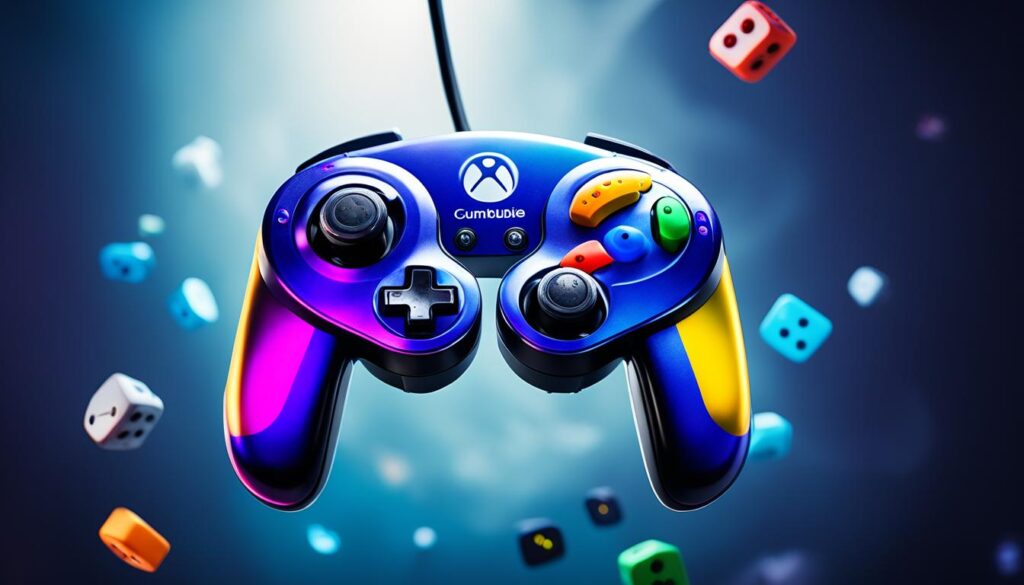
“The ability to fine-tune my GameCube controller’s behavior has taken my gaming experience to the next level. I feel more in control and confident in my inputs, especially in fast-paced or precision-focused titles.”
– John Doe, Avid Retro Gamer
Steam’s controller tool lets you create a gaming setup that’s all yours. Try out different settings and profiles to enhance your gaming.
Retro Gaming Communities and Resources
The GameCube controller has a strong following among retro gaming fans. These fans have created active online communities, forums, and groups. They share tips and resources for using classic controllers on platforms like Steam.
Online Forums and Discussion Groups
Retro gaming forums and groups are buzzing with activity for GameCube controller fans. You can find lots of advice and help from those who know the scene well. They cover everything from fixing problems to customizing your setup.
- Retro Gaming Subreddit: A lively Reddit community focused on retro gaming, including GameCube controllers on modern systems.
- Gamecube-Underground: A forum for GameCube fans, with talks on controllers, mods, and game tips.
- Retro Game Modding: A forum where members swap stories and ideas for modifying retro controllers and consoles.
These resources are full of useful info. They let you meet others who love retro gaming, learn from their stories, and stay updated on the latest in retro gaming.

| Online Resource | Description | Key Features |
|---|---|---|
| Retro Gaming Subreddit | A lively Reddit community focused on retro gaming, including GameCube controllers on modern systems. | – Active discussions on retro gaming topics – Advice and troubleshooting for using GameCube controllers – Recommendations for retro gaming hardware and software |
| Gamecube-Underground | A forum for GameCube fans, with discussions on controllers, mods, and game tips. | – In-depth conversations about GameCube hardware and accessories – Guides and tutorials for modifying GameCube controllers – Reviews and recommendations for classic GameCube games |
| Retro Game Modding | A forum where members share their experiences and ideas for modifying retro gaming controllers and consoles. | – DIY tutorials for controller customization and modifications – Discussions on the latest retro gaming hardware trends – Community-driven projects and collaborations |
These communities and groups are key for retro gaming fans. They offer a lot of info, support, and inspiration for improving your classic gaming experience.
“The best part about retro gaming communities is the sense of camaraderie and shared passion for preserving the legacy of our beloved classic controllers and consoles.”
If you’re dealing with compatibility issues, want to customize your setup, or just want to meet others, these resources can help. They make your retro gaming journey better.
Frequently Asked Questions
If you want to use your GameCube controller on Steam, you’re in the right spot. This section covers common questions and troubleshooting tips. It helps you connect your retro controller with your modern gaming setup.
What GameCube controller features are supported on Steam?
The GameCube controller works well on Steam Deck. It supports DPAD Up, Down, Left, Right; Buttons A, B, X, Y; R1, Z, L2, R, and more. You can set up controls on RetroArch by pressing the Start button for 3 seconds in Desktop Mode.
Each controller type, like SNES, Nintendo 64, and Wii, has its own button mappings on the Steam Deck.
How do I configure the GameCube controller on Steam?
Setting up the OG Xbox controller includes mapping DPAD, A, B, X, Y, L1, and R1 buttons. EmuDeck makes it easy to change control settings in Desktop Mode for different emulators. You can save your profiles too.
RetroArch lets you adjust controls in both Desktop Mode and Game Mode. This gives you more flexibility.
What resources are available for GameCube controller customization?
There are detailed steps to change controller layouts for each game using RetroArch. This makes gaming more personal. You can put GameCube and Wii ROMs in certain directories.
Dolphin emulator doesn’t need BIOS to play ROMs for GameCube and Wii.
| Emulator | Supported File Formats | Hotkey Features | Wiimote Profiles |
|---|---|---|---|
| Dolphin | .ciso, .dol, .elf, .gcm, .gcz, .iso, .nkit, .rvz, .wad, .wia, .wbfs | Toggle Full Screen, Save State, Load State, Fast Forward, Reset Emulation, Shake Wiimote, Hide Wii Pointer | Wiimote with Nunchuk, Wiimote with Nunchuk and Touchpad Support, Wiimote with No Attachment, Wii Classic Controller |
You can add GameCube BIOS for a GameCube launch screen. The Wii Menu isn’t needed to play Wii Games. Dolphin gives you places for game saves, state saves, BIOS, and config files.
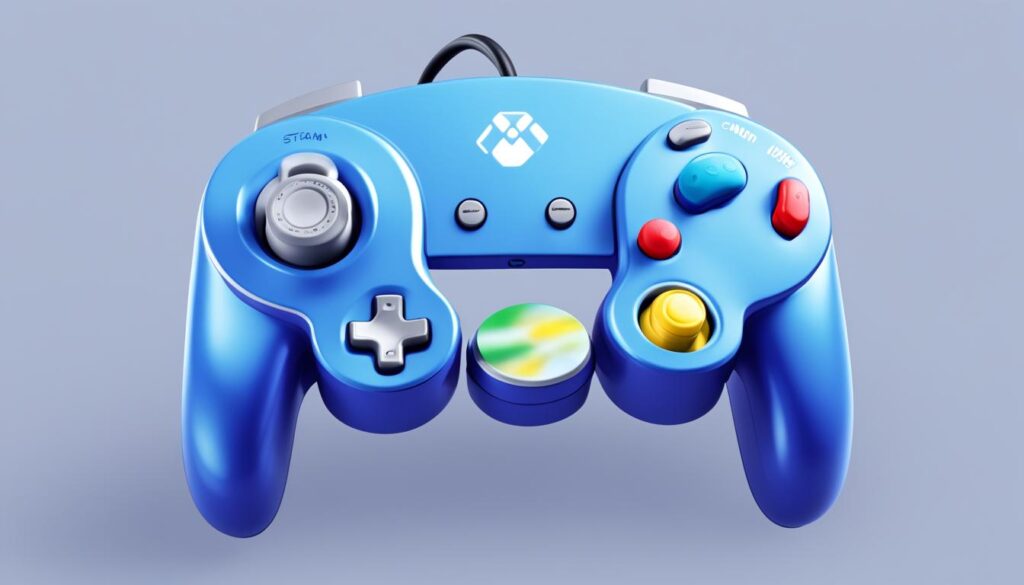
“Using my trusty GameCube controller on Steam has been a game-changer. The setup was a breeze, and now I can enjoy my favorite retro titles with the perfect controller.”
If you have issues or questions, check the troubleshooting guide or ask the retro gaming community for help.
Conclusion
Using a GameCube controller on Steam lets you relive classic gaming on your PC. This guide shows how to easily connect your retro controller with Steam games. It opens up a world of nostalgia and customization.
The GameCube controller’s design brings comfort and familiarity to your gaming. It makes your sessions more immersive. If you love Nintendo or want a unique way to play, using a GameCube controller on Steam is perfect. It combines modern and retro gaming beautifully. This controller unlocks new possibilities and improves your gameplay.
When you start retro gaming on your PC, check out online communities and resources for classic controllers. You’ll find support, customization options, and shared experiences to make your gaming better. Embrace the nostalgia, customize your setup, and dive into the timeless appeal of the GameCube controller on Steam.
FAQ
What games and platforms officially support the use of GameCube controllers on Steam?
What hardware and software do I need to use a GameCube controller on Steam?
How do I connect and set up the GameCube controller on Steam?
Can I customize the button mapping and other settings of the GameCube controller on Steam?
What are some common issues I might encounter when using a GameCube controller on Steam, and how can I troubleshoot them?
Are there any online communities or resources available for GameCube controller users on Steam?
Source Links
- https://howchoo.com/gaming/use-a-gamecube-controller-on-pc/
- https://dolphin-emu.org/docs/guides/configuring-controllers/
- https://blog.lmorchard.com/2016/02/05/steam-controller/
- https://gamerant.com/steam-deck-how-run-gamecube-wii-games/
- https://wiki.gbl.gg/w/Rivals_of_Aether/FAQ
- https://steamcommunity.com/app/1316910/discussions/0/2961670721752391957/
- https://gbatemp.net/threads/what-is-the-best-way-to-connect-retro-controllers-to-a-pc.637400/
- https://handheldlegend.com/collections/game-cube?srsltid=AfmBOorcdbcq56NonWY3MwvKzrGMGeu8hpRo-Ime451qKSNd3rm0XOeX
- https://emudeck.github.io/controls-and-hotkeys/steamos/controls-101/
- https://emudeck.github.io/emulators/steamos/dolphin/
- https://exlene.com/blogs/news/exlene-wireless-gamecube-controller-for-switch-pc-official-gbatemp-review