
I’ve always loved exploring vast worlds and battling enemies in games. Horizon Zero Dawn takes this to a new level, especially with its PC controls.
If you’re a fan or new to the game, this guide will help you master the controls. You’ll be ready to dive into Horizon Zero Dawn’s world.
Guerilla Games developed Horizon Zero Dawn, first released for the PlayStation 4 in 2017. It wowed players with its visuals, combat, and story. Now, it’s coming to PC, offering many control options for a smooth experience.
Key Takeaways
- Horizon Zero Dawn is now available on PC, offering players a range of control options to enhance their gameplay experience.
- The game features a comprehensive set of default keyboard and mouse controls, catering to various gameplay needs.
- Players can customize their control schemes to suit their preferences, leveraging the flexibility of PC gaming.
- Controller support is provided, allowing for a more traditional console-like experience on the PC.
- Advanced control tips and tricks can help players optimize their playstyle and gain a competitive edge.
Introduction to Horizon Zero Dawn PC Controls
Horizon Zero Dawn, a top action-adventure game by Guerilla Games, first came out for the PlayStation 4 in 2017. Now, it’s also available on PC, letting players use keyboards and mice. This part talks about the PC version and why knowing the controls is key for a great game experience.
Overview of Horizon Zero Dawn’s PC Release
The PC version of Horizon Zero Dawn has all the standard features you’d expect from a big game in 2020. Players can choose from many graphics options, including high resolutions and ultrawide screens. The game also lets you customize your controls, making it easier to play with a mouse and keyboard.
Importance of Understanding PC Controls
Even though the game is made for controllers, the PC version supports keyboards and mice too. Knowing how to use the PC controls is important for getting the most out of your mouse and keyboard. This part talks about why learning the PC controls can make the game better.
| Platform | Release Date | Rating | |
|---|---|---|---|
| PlayStation 4 | NA: February 28, 2017 | EU: March 1, 2017 | PEGI: 16, ESRB: T |
| Microsoft Windows | August 7, 2020 (Steam, Epic) | November 24, 2020 (GOG) | PEGI: 16, ESRB: T |
“Understanding the PC control scheme is crucial for players to fully utilize the precision and speed that a mouse and keyboard setup can provide.”
Default Keyboard and Mouse Controls
The default controls in Horizon Zero Dawn make it easy to move around the game world. The WASD keys help you move, and the mouse controls the camera. This guide will cover how to walk, run, and dodge.
Movement Controls
Use the WASD keys to move your character. Press Shift to sprint and cover more ground quickly. Jump with the Spacebar and crouch or slide with the C key. These controls let you explore Horizon Zero Dawn’s vast world on PC.
Camera Controls
The mouse controls the camera in Horizon Zero Dawn on PC. Move the mouse to look around and track enemies. This part explains how to use the camera to your advantage.
Action Controls
The keyboard and mouse also offer action controls. You can interact with objects, use Focus mode, and switch tools and weapons. Here are the default keys for these actions.
| Action | Default Key Binding |
|---|---|
| Interact | E |
| Focus Mode | TAB |
| Weapon Swap | Q |
| Fire Weapon | Left Mouse Button |
| Aim Weapon | Right Mouse Button |
| Melee Attack | F |
Learning these controls helps players quickly get into the game. They make the combat and exploration in Horizon Zero Dawn on PC exciting.
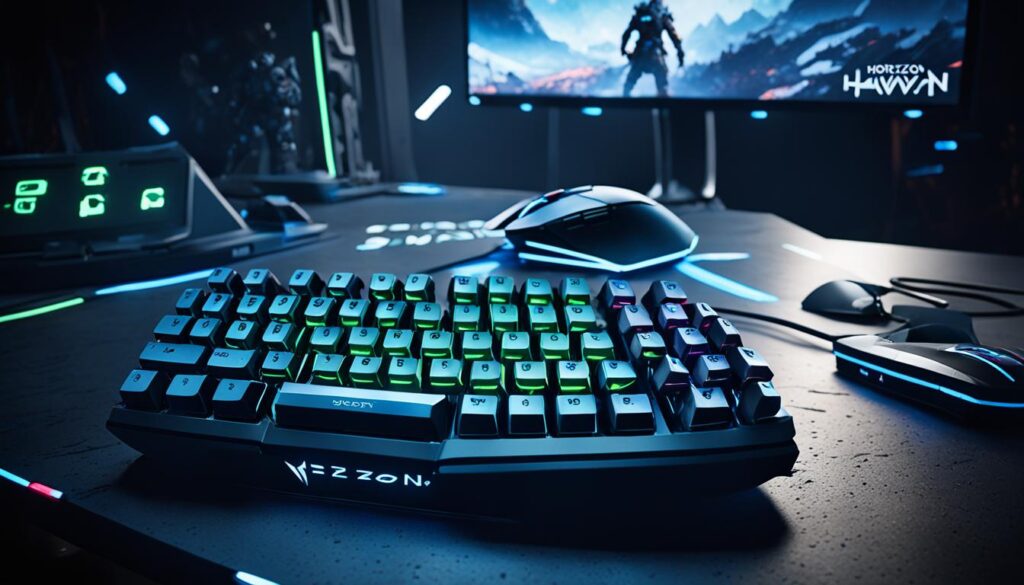
Customizing Keyboard and Mouse Controls
For players wanting to improve their Horizon Zero Dawn experience on PC, customizing the keyboard and mouse controls is key. This guide will show you how to access the control remapping menu. It also offers suggestions for key rebindings to boost your gameplay.
Accessing the Control Remapping Menu
To get to the control remapping menu in Horizon Zero Dawn on PC, just follow these steps:
- Pause the game by pressing the Escape (Esc) key.
- Navigate to the “Options” menu.
- Select the “Controls” tab.
- In the “Keyboard & Mouse” section, you will find the control remapping options.
Here, you can change various actions to different keys and buttons. This lets you tailor your controls to your liking and playstyle.
Recommended Keybind Changes
While the default controls work well, some players might want to tweak them for better gameplay. Here are a few keybind changes to consider:
- Change the “Heavy Attack” key to a more accessible button, like the side mouse button or the “Shift” key.
- Move the “Weapon Wheel” to a key for quicker weapon switching, such as the “Q” or “Tab” key.
- Bind the “Focus” ability to a key for easier use in combat or exploration.
- Adjust the camera controls to your preferred sensitivity and settings.
These changes can make your gameplay smoother and certain actions easier to do. Some players found that customizing controls led to issues with shift layers and sticky keys. These problems made gameplay less smooth, especially when using the WASD keys and mouse together. Despite trying different settings and controllers, the sticky keys issue stayed. Some players found that changing setups helped fix the problem, pointing to possible issues with the reWASD software.
Customizing your controls can make playing Horizon Zero Dawn more enjoyable and immersive. The game got a 6 out of 10 review score. It requires about 20 keys for gameplay. Some actions, like takedowns, need many keys. The game doesn’t let you bind the ‘Track’ feature in combat. Players faced challenges with many enemies and physical exhaustion. The game was released in 2017 by Guerrilla Games. The Complete Edition includes the That Frozen Wilds expansion, offering more play options for disabled players. However, some keys, like the ‘Enter’ key, can’t be rebound, affecting gameplay for disabled players.
horizon zero dawn pc controls
The PC controls in Horizon Zero Dawn are different from the console version, which uses a gamepad. This section explains the main differences between the two, helping players understand the unique benefits and challenges of the PC controls.
Key Differences from Console Controls
The PC version of Horizon Zero Dawn lets players use a keyboard and mouse for gameplay. This gives players more precision and flexibility than the console’s gamepad. The PC has a detailed set of keybinds for actions like moving, fighting, and using skills.
On the PS4, controls focus on basic actions like moving and aiming. Players can also use med pouches, interact with the environment, and dodge.
Advantages of Playing with Mouse and Keyboard
The PC version of Horizon Zero Dawn has several benefits over the console version with a mouse and keyboard. Players get better aiming precision, quick menu navigation, and customizable controls. The PC controls also offer more control over Aloy and her mounts, making gameplay smoother.
Players can use visual cues like radar symbols and visibility meters for strategy in Horizon Zero Dawn. The guide also covers using items like med pouches and traps in combat.
Overall, the PC controls in Horizon Zero Dawn provide a precise and customizable experience. They let players explore the game’s world and fight with more precision and responsiveness.
Controller Support and Configuration
Horizon Zero Dawn on PC supports both keyboard and mouse and gamepads. It has default layouts for actions like aiming and using the weapon wheel. Players can also customize these layouts to fit their style.
Default Controller Layouts
Horizon Zero Dawn has several default layouts, including a standard and an alternative layout. There’s also a Left-Handed layout and a fully customizable option. Each layout has its own button setup, letting players pick what works best for them.
Customizing Controller Settings
Players can change the default layouts to fit their preferences. This guide shows how to access and customize the controls. It helps players make the game feel just right for them.
To start customizing, go to the game’s options and find the “Controls” or “Input” section. Here, you can change most button assignments. This lets you create a setup that feels natural and efficient.
You might want to move the weapon wheel or dodge function to easier buttons. The customization menu lets you try different setups to find what works best for you.
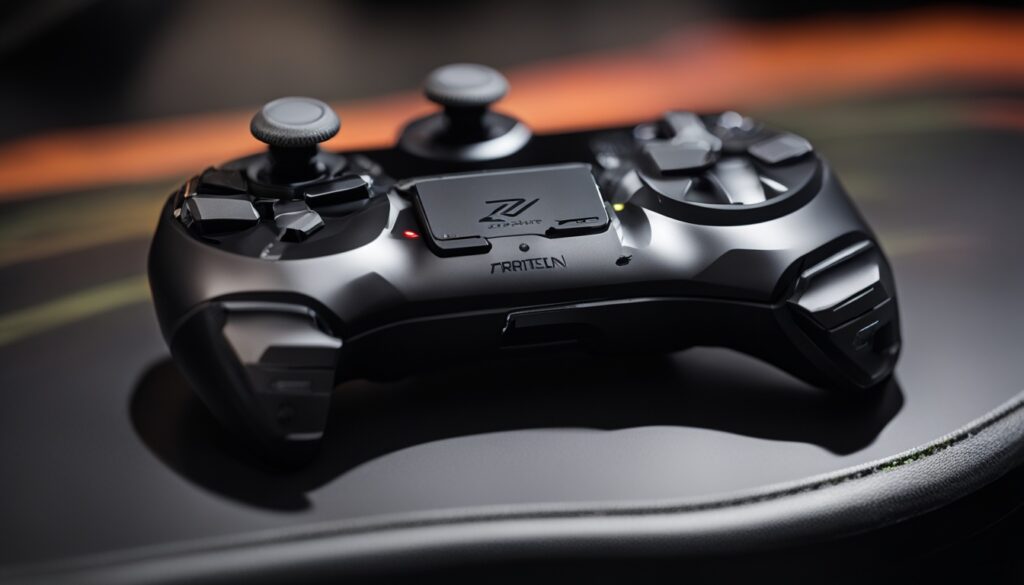
Nixxes, the game’s developer, has released updates that add more customization options and improve the controls.
| Controller Preset | Description |
|---|---|
| Default | The standard controller layout, with familiar button assignments. |
| Alternative 1 | An alternative configuration that may better suit certain playstyles. |
| Left-Handed | A layout designed for left-handed players or those who prefer a different control scheme. |
| Custom | A fully customizable layout, allowing players to remap buttons to their preferred assignments. |
Exploring the different layouts and options can make Horizon Zero Dawn more enjoyable. It lets you make the game fit your style, making it more immersive.
Advanced PC Control Tips and Tricks
As you explore Horizon Zero Dawn on your PC, you’ll find advanced control techniques to boost your gameplay. Modern gaming mice often have programmable buttons. These can make your control scheme smoother.
Utilizing Additional Mouse Buttons
Many gaming mice have extra buttons besides the usual ones. You can customize these for actions you use a lot, making things quicker. Check out your mouse’s software to learn how to set these buttons. Assigning actions like weapon switching to these can make you faster in combat.
Double-Tap Movement Keys for Rolling
In Horizon Zero Dawn, double-tapping WASD keys lets you dodge quickly. This helps you avoid attacks and move around easily. Getting good at this can really help you in the game.
Using these advanced controls can make Horizon Zero Dawn more fun. Try different button setups and practice the double-tap rolling. This will improve your control and how you play the game.
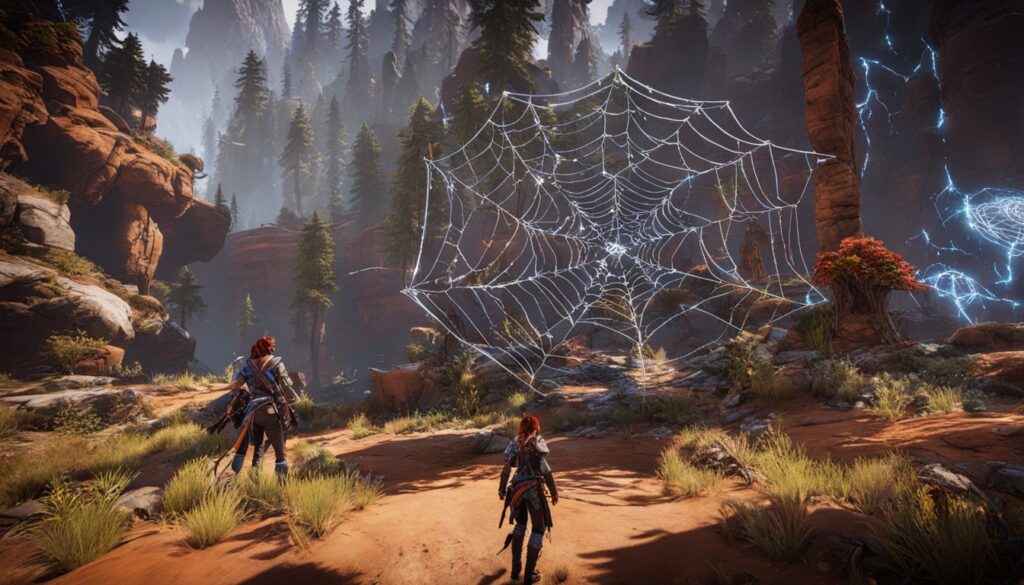
To get the most out of Horizon Zero Dawn’s controls, be open to trying new things. With some effort, you’ll move through the game world and beat tough enemies with ease.
Accessibility and Control Optimization
Horizon Zero Dawn on PC has many options for accessibility and control to make playing easy and fun for everyone. It was made to work well with AMD hardware, especially the specs of the PlayStation 5. Tests were done on a PC with an Intel Core i9-13900K CPU, 32GB of DDR5-6400 memory, and a 4TB Crucial T700 PCIe 5.0 SSD.
The game lets players adjust settings to fit their needs, like changing how sensitive controls are or swapping action buttons. This is important because about 1 in 4 people have a disability that affects things like walking or seeing.
- Motor accessibility features help with controls for those who find it hard to use regular controllers or mouse and keyboard.
- Hearing accessibility includes closed captions, subtitles, and visual cues for people who are hard of hearing or deaf.
- Vision accessibility has options for colorblind players, HUD adjustments, and menu narration for those with low vision or blindness.
- Cognitive accessibility features like simple language and tutorials help players with cognitive issues.
- Speech accessibility helps with communication through ping systems, text chat, and visual tools for those who prefer voice chat.
Many people have more than one disability, so they need help from different areas at once. For example, closed captions help with hearing and processing speed.
| Accessibility Category | Key Features |
|---|---|
| Motor Accessibility | Simplified controls, control remapping |
| Hearing Accessibility | Closed captions, subtitles, visual cues |
| Vision Accessibility | Colorblind-friendly options, HUD adjustments, menu narration, audio cues |
| Cognitive Accessibility | Simplified language, tutorials, hint systems, gore filters, motion sickness options |
| Speech Accessibility | Ping systems, text chat support, visual communication tools |
Accessibility in games is key to making sure everyone can enjoy them. Horizon Zero Dawn on PC has made big efforts to be more inclusive and customizable for all players.
Troubleshooting Common Control Issues
While the PC controls in Horizon Zero Dawn are generally easy to use, players might sometimes face control problems. This guide helps fix these issues, like solving key binding overlaps or input lag. It suggests ways to make the controls better, like adjusting mouse settings or checking controller configurations.
Resolving Control Conflicts
Players often run into control conflicts, where actions or commands get mixed up. This can cause unwanted actions in the game. To fix this, check the control settings menu and make sure everything is set right. Also, watch out for conflicts with other software or hardware you use, like DS4Windows or Steam’s settings.
Improving Precision and Responsiveness
Some players might notice issues with the controls, like slow responses or poor tracking. To fix this, try adjusting your mouse settings to match your play style and system. Also, keep your graphics drivers updated and make sure your system meets the game’s requirements.
If you’re using a controller, make sure it’s set up right and any extra software is configured correctly. Trying different settings for the controller can also help improve how it responds.
Some players found that turning off Steam’s input handling or reducing the controller’s speaker volume helped with performance. Also, updating graphics drivers from the manufacturer’s site instead of the GeForce app fixed some issues in Horizon Forbidden West Complete Edition.

By trying these steps and adjusting your controls, you can fix common problems and enhance your Horizon Zero Dawn PC experience.
Comparison with Other Action-Adventure Games
To help players move from other action-adventure games, comparing the controls of Horizon Zero Dawn on PC with similar games is useful. This helps players find familiar control patterns, making it easier to learn.
Control Schemes in Similar Titles
Popular action-adventure games on PC have different control schemes. Some, like Soulslike games, work best with a controller. Others, like Forza Horizon 5, are made for gamepads. Then, there are 3D platformers like Psychonauts 2 that are easier with a controller for precise moves.
Horizon Zero Dawn on PC has fully remappable controls, unlike the PS4 version. This lets players customize the controls to what they prefer. It can make switching from other games easier by using their favorite setup.
| Game | Ideal Control Scheme |
|---|---|
| Zenless Zone Zero | Keyboard and Mouse |
| Dragon Ball Z: Kakarot | Controller |
| Lords of the Fallen | Controller |
| Forza Horizon 5 | Controller |
| Fate/Samurai Remnant | Controller |
| Teenage Mutant Ninja Turtles: Shredder’s Revenge | Controller, Keyboard, or Fight Stick |
| Velocity Ultra | Controller |
| Yakuza 0 | Controller |
| Psychonauts 2 | Controller |
| Castle Crashers | Controller |
Horizon Zero Dawn on PC stands out with its fully remappable controls and HUD scaling up to 120% for better accessibility. These features help players adjust easily, no matter their experience with similar games.
“The control schemes in Horizon Zero Dawn PC version are designed to provide a smooth and customizable experience for players, allowing them to map the controls to their preferred setup and optimize the interface for their needs.”
Community-Recommended Control Setups
The Horizon Zero Dawn community has shared many control setups and keybinds that work well. This section shows some top control schemes for players to try.
Popular Keybind Configurations
Many players have tried custom keybindings to fit their style better. Some common setups include:
- Mapping “Focus” (scan) to the mouse’s side button for quick access.
- Reassigning “Dodge” to the spacebar or a more accessible key.
- Binding “Weapon Wheel” to the mouse scroll wheel for easy weapon switching.
- Customizing various action keys (e.g., “Crouch,” “Jump,” “Stealth”) to optimize their placement.
Controller Presets Shared by Players
The community has also shared controller presets that work well. These presets are great for players who like gamepads and want to try new button setups.
Some top controller setups are:
- A “Claw” grip that puts key actions on the right thumbstick for better response.
- A “Bumper Jumper” layout that moves “Jump” to the left bumper for aerial control.
- A “Southpaw” scheme for left-handed players or those who like an unusual setup.
The Horizon Zero Dawn community’s shared setups and keybinds give players many options to customize their game. This helps players find the best control scheme for their needs and preferences.
Future Updates and Improvements
Horizon Zero Dawn is getting better with updates and improvements. There’s a good chance we’ll see better control options in the future. These could be new settings, bug fixes, or other tweaks to make playing on PC even better.
Potential Control Enhancements in Patches
Guerrilla Games is working hard to make the game run smoother and listen to what players say. In the last year, Horizon Zero Dawn got many updates for PC, from 1.11.2 to 1.03. These updates fixed problems like VRAM issues, graphical glitches, TAA crashes, and gameplay issues.
Looking forward, we can expect more improvements to the PC version. This might mean more ways to customize controls, better mouse and keyboard response, and new features like extra mouse buttons or double-tap movement.
The success of Horizon Zero Dawn on PC also means good things for its sequel, Horizon Forbidden West. Fans can look forward to more graphics improvements and control options on PC.
The Horizon series is growing, and the developers are focused on making the PC version better. Players can expect regular updates and improvements that will make fighting and exploring in the game even more fun.
Conclusion
This guide has covered the Horizon Zero Dawn PC controls in detail. It talked about default settings, customization, advanced techniques, and troubleshooting tips. Players can now dive deep into the game’s world and enjoy the exciting combat and exploration. Whether you use a keyboard and mouse or a gamepad, this guide helps you customize the controls for a better experience.
The PC version of Horizon Zero Dawn came out in August 2020. It offers many ways to customize and optimize gameplay. You can adjust things like the field-of-view and framerates, and even change the keys for actions. This lets players set up the game just how they like it for more fun.
But, the game did face some issues like performance problems and graphical bugs. The developers worked hard to fix these with updates and patches. Now, PC gamers can enjoy a smoother and better experience.
As you start your journey in Horizon Zero Dawn on the PC, we hope this guide has helped you. It should make controlling the game easy and let you enjoy its stunning views and exciting fights. With the right controls, you’ll get to see the game’s beauty, beat tough machines, and solve its mysteries. Enjoy your time, Nora Brave!
FAQ
What are the default keyboard and mouse controls in Horizon Zero Dawn on PC?
Can I customize the keyboard and mouse controls in Horizon Zero Dawn?
What are the key differences between the PC and console controls in Horizon Zero Dawn?
Does Horizon Zero Dawn on PC support controller input?
Are there any advanced control techniques I can use in Horizon Zero Dawn on PC?
Does Horizon Zero Dawn on PC have accessibility and control optimization features?
How can I troubleshoot common control issues in Horizon Zero Dawn on PC?
Source Links
- https://twinfinite.net/guides/horizon-zero-dawn-pc-controls-guide/
- https://horizon.fandom.com/wiki/Horizon_Zero_Dawn
- https://www.rockpapershotgun.com/horizon-zero-dawn-pc-review
- https://www.ign.com/articles/horizon-zero-dawn-pc-port-analysis
- http://tobolds.blogspot.com/2020/08/horizon-zero-dawn-pc-mouse-and-keyboard.html
- https://vulkk.com/2024/03/21/horizon-forbidden-west-pc-and-console-controls-guide-and-keybinds-recommendations/
- https://forum.rewasd.com/forum/rewasd/technical-questions-aa/229663-horizon-zero-dawn-issue-with-shift-layers-persisting-input
- https://caniplaythat.com/2020/08/05/horizon-zero-dawn-complete-edition-mobility-review/
- https://www.gamepressure.com/horizon-zero-dawn/controls-keybinds-interface/z997de
- https://forum.endeavouros.com/t/horizon-zero-dawn-joystick-or-gamepad-support/45567
- https://www.ign.com/wikis/horizon-2-forbidden-west/Tips_and_Tricks
- https://gamerant.com/horizon-zero-dawn-xbox-controller-support/
- https://www.tomshardware.com/video-games/pc-gaming/horizon-forbidden-west-pc-port-analysis-another-game-that-can-exceed-8gb-vram-use
- https://leahybaker.com/gamesaccessibility101/
- https://www.gamepressure.com/horizon-zero-dawn/technical-issues-fixes-pc-version/z3d7b6
- https://ds4-windows.com/troubleshoot/
- https://www.minitool.com/news/horizon-forbidden-west-complete-edition-low-fps.html
- https://caniplaythat.com/2020/08/05/horizon-zero-dawn-complete-edition-accessibility-impressions/
- https://gamerant.com/pc-games-better-with-controller/
- https://steamcommunity.com/app/1151640/discussions/0/2791621875944219494/?l=russian
- https://horizon.fandom.com/wiki/Horizon_Zero_Dawn_updates
- https://screenrant.com/horizon-zero-dawn-pc-complete-edition-features-guerrilla/
- https://www.techpowerup.com/review/horizon-zero-dawn-benchmark-test-performance-analysis/5.html
- https://mobilesyrup.com/2020/08/05/horizon-zero-dawn-pc-port-review/