
I’ve always looked for ways to make my gaming better. Finding out how to connect my PS4 controller to my PC with a Bluetooth dongle was a big step. It made wireless gaming feel more natural and fun. Here’s how you can do the same and improve your gaming.
Imagine playing your favorite PC games with the PS4 controller’s comfort and feel. You won’t be stuck to your computer. With the right setup, you get the DualShock 4’s controls without any wires. This change can make your gaming even better.
Key Takeaways
- Learn how to easily connect your PS4 controller to your PC using a Bluetooth dongle
- Discover the hardware and software requirements for a seamless wireless connection
- Unlock the freedom and responsiveness of using the familiar DualShock 4 controller on your PC
- Enhance your gaming experience by leveraging the intuitive controls and tactile feedback of the PS4 controller
- Explore additional options for using other gaming controllers, such as Nintendo Switch and Xbox, with your PC
Introduction to Connecting PS4 Controller to PC
The DualShock 4, Sony’s iconic PS4 controller, is known for its great design and precise controls. It’s mainly for the PlayStation 4, but you can also use it with your PC for a better gaming experience. This guide will show you how to connect your PS4 controller to your PC easily, opening up new gaming options.
To start, you’ll need your DualShock 4 controller, a micro-USB cable, and a Bluetooth dongle for your PC if it lacks Bluetooth. With these items ready, you can set up the connection and play your favorite PC games with the PS4 controller’s familiar feel.
When using the PS4 controller with your PC, keep in mind some Bluetooth mode limits. The controller works well, but some features like the touchpad, vibration, and headphone jack might not work fully. To fix this, use the DS4Windows software. It boosts compatibility and lets you map the controller’s functions to an Xbox 360 controller.
If you’re a PC gamer or want to improve your gaming, connecting your PS4 controller to your computer can change the game. By following this guide, you’ll easily connect your DualShock 4 controller and discover new gaming possibilities on your PC.
Hardware Requirements
To connect your ps4 controller hardware to your PC, you’ll need a few key items. First, you need the dualshock 4 controller, the official gamepad for the PlayStation 4. Then, you’ll need a micro-USB cable to link the controller to your computer.
If your PC lacks Bluetooth, you might need a bluetooth dongle for pc for wireless connection. With these items, you can easily add your PS4 controller to your PC gaming setup.
Dualshock 4 PS4 Controller
The Dualshock 4 is the go-to controller for the PlayStation 4. It’s designed for comfort and has controls like dual analog sticks and a touchpad. It works with many devices, making it great for PC gaming too.
Micro-USB Cable
You’ll need a micro-USB cable to connect your dualshock 4 controller to your PC. This cable lets you connect the controller to your computer for a wired setup. It’s a common cable that’s easy to find.
Bluetooth Dongle for PC (Optional)
If your PC doesn’t have Bluetooth, you’ll need a bluetooth dongle for pc for wireless connection. This dongle connects to your PC’s USB port, giving you Bluetooth and wireless pairing for your ps4 controller hardware.
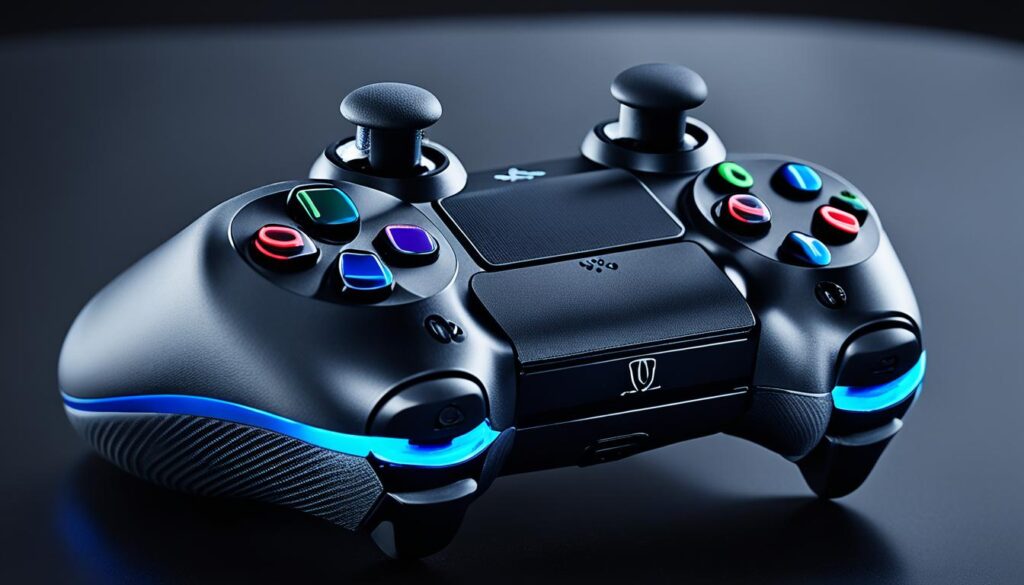
With these key items, you’re ready to use your PS4 controller on your PC. You can choose between a wired or wireless setup. Either way, you’ll enjoy the Dualshock 4’s familiar and responsive controls on your computer.
Software Requirements
To use your PlayStation 4 (PS4) controller on your PC, make sure you have the right software. You’ll need popular games platforms like Steam. Also, you’ll need the Microsoft .NET Framework 4.5 and the Xbox 360 Controller Driver for Windows 7 users. The DS4Windows tool is also helpful, letting your PS4 controller work with non-Steam games.
Steam
Steam is a well-known digital platform that supports the DualShock 4 controller. By turning on PlayStation Configuration Support in Steam, you can customize your controller. You can adjust the controller settings and pick LED colors.
Microsoft .NET Framework 4.5
The Microsoft .NET Framework 4.5 is key for using your PS4 controller with your PC. This update makes sure your DualShock 4 works well with different apps and games.
Xbox 360 Controller Driver (Windows 7)
If you’re using Windows 7, you need the Xbox 360 Controller Driver. This driver helps your PS4 controller work on your PC. It makes gaming smooth and consistent.
DS4Windows
DS4Windows is a useful tool for playing non-Steam games with your PS4 controller. It lets you set up custom profiles and assign button functions. This way, your DualShock 4 controller fits well with many PC games.
With these software pieces installed and set up right, you can easily use your PS4 controller on your PC. You’ll have a great gaming experience on Steam or other PC games.
Connecting PS4 Controller to Steam
If you want to use your PS4 controller with Steam games, it’s easy. Valve added support for the DualShock 4 in 2018. This makes setting up your controller for gaming simple.
Pairing and Setup in Steam
To pair your PS4 controller with Steam, press and hold the PS and Share buttons until the controller’s light bar flashes. When your computer shows ‘Device ready’, you’re paired. Sony’s official adapter is rare, but any Bluetooth 2.0+ dongle works for wireless connection.
Configuring Controller Settings
After pairing, Steam lets you customize your PS4 controller. You can change button mappings, adjust stick sensitivity, and use special features like the touchpad and gyroscope. Customize the touchpad to act as a mouse or control the game camera by tilting the controller.
By easily connecting your PS4 controller to Steam, you get to use the DualShock 4 with PC games. The PS4 controller steam setup and options make it great for PC gamers.
Using DS4Windows for Non-Steam Games
For games not on Steam, DS4Windows lets you use your PS4 controller easily. It turns your DualShock 4 into a virtual Xbox controller for many PC games. First, download and install DS4Windows, then make profiles to change your controller’s settings.
Setting Up DS4Windows
Begin by downloading and installing DS4Windows. It works with many PlayStation controllers, like the DualShock 3, 4, and PS5 DualSense, plus Nintendo Switch Pro and Joycons, and even fake DS4s. After installing, use the profile system for easy setup with each game or controller.
Creating and Editing Profiles
DS4Windows lets you customize your controller settings. You can change key bindings to keyboard, mouse, joysticks, and more. Adjust touchpad sensitivity, add macros, and customize the lightbar, among other options. The profile system helps you set up settings for each game or controller.
DS4Windows is open-source, supported by Ryochan7 and the community. It has a fully customizable virtual gamepad and supports keyboard/mouse control, plus a mode shift feature for extra mappings. Using Microsoft’s Bluetooth stack is recommended to cut down on latency when using your controller wirelessly.
DS4Windows is great for non-Steam games and customizing your controller. By setting up profiles and using its features, you can make your controller work just how you want.
bluetooth dongle for ps4 controller to pc
If your PC lacks built-in Bluetooth, a dedicated Bluetooth dongle can connect your PS4 controller wirelessly. The Sony Dualshock 4 Bluetooth Adapter is a great choice. It pairs easily with the controller and ensures a strong Bluetooth link to your computer.
For Windows 8 and later, pairing the PC and controller is easy without needing to install a Bluetooth driver. But for Windows XP and Windows 7, you must install a driver for the PS4 controller Bluetooth dongle first. This requires 11 steps to set up the driver and pair the devices.
Setting up on Windows 8/8.1 and Windows 10 is simpler, needing just 3 steps to connect the PC with the PS4 controller. Users are guided to a link (https://remoteplay.dl.playstation.net/remoteplay/lang/gb/index.html) for setup help. The manual is also downloadable from the Download Center for more information.
The Sony Dualshock 4 Bluetooth Adapter is available online. On eBay, it costs $18.72, with a 5-day handling time and a 30-day money-back guarantee. But, it can’t be shipped to some places like PO Boxes or certain regions.
The PS4 controller Bluetooth dongle uses Bluetooth 5.0 technology for better performance. It has four times the range, is twice as fast, and broadcasts eight times more data. It can transfer data at up to 3 Mbps, twice the speed of Bluetooth 4.2. The range is up to 33ft/10M in open spaces, but can be reduced by walls or interference.
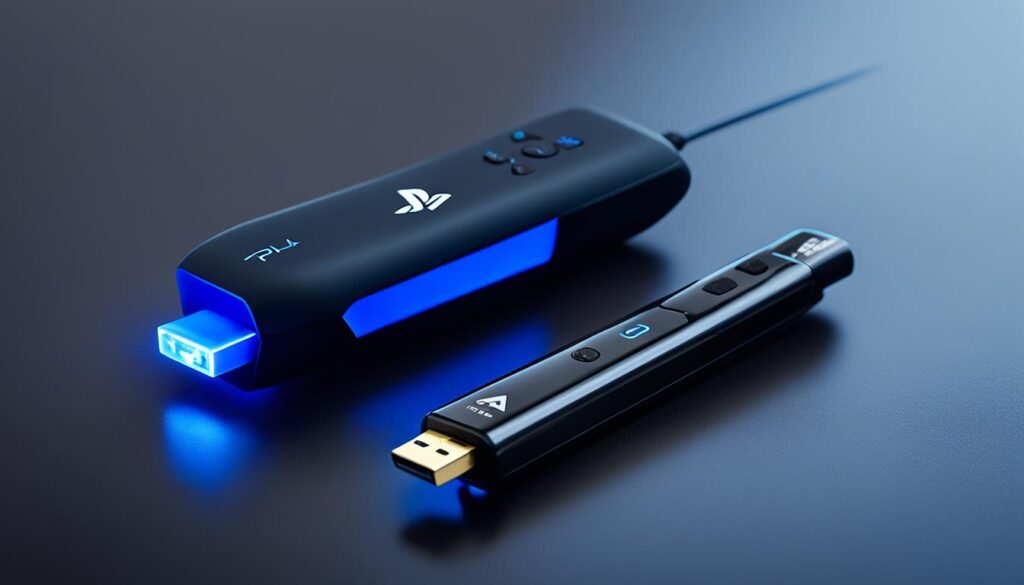
In summary, the official Sony DualShock 4 USB wireless adapter makes connecting your PS4 controller to your PC easy. It provides a reliable Bluetooth connection. The setup is simple for Windows 8/10 or older versions. The dongle’s performance and compatibility with devices are impressive.
Connecting PS4 Controller to PS4 Console
This guide shows how to connect your PS4 controller to a PC. But, connecting it to a PlayStation 4 console is just as easy. Use a USB cable to link the controller and console. The controller will pair with the PS4 automatically once connected.
Adjusting Controller Settings
After connecting your PS4 controller to the console, you can adjust settings for a better gaming experience. In the PS4’s system settings, you can change vibration intensity and audio output. This lets you make the controller your own, ensuring comfort and control during games.
The PlayStation DualShock 4 Wireless Controller comes in many colors. You can pick from JetBlack, Midnight Blue, Glacier White, and Rose Gold. This way, you can match your controller to your style.
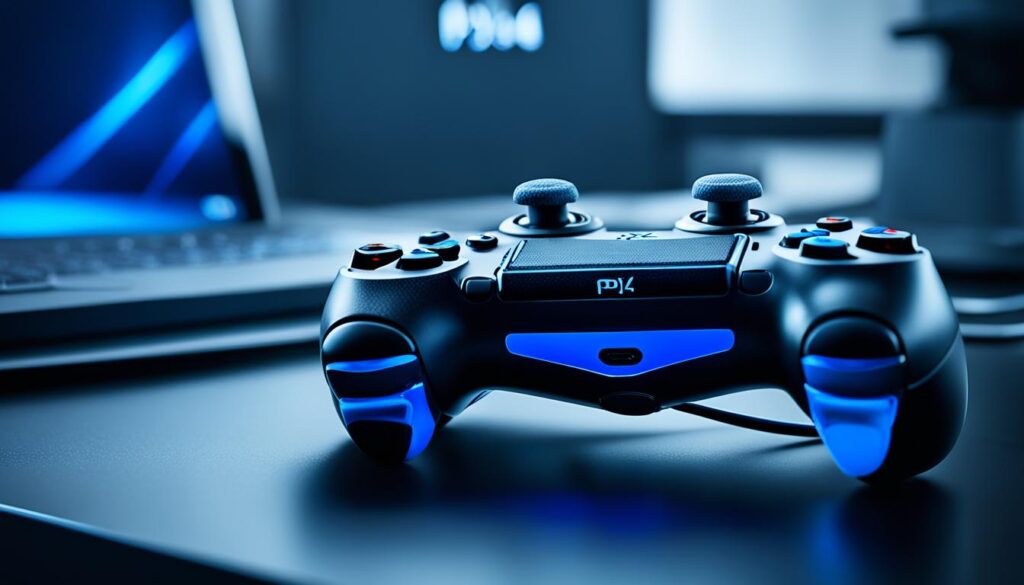
Connecting your PS4 controller to a PC or console is easy and friendly. By setting up and customizing your controller right, you can improve your gaming experience. You’ll get smooth control over your favorite games.
Troubleshooting PS4 Controller Issues
If your PS4 controller is not working right, don’t worry. You can try a few things to fix it. First, check the battery and make sure the connection is good, whether it’s wired or Bluetooth. Most controllers work with a 2.1 Bluetooth adapter, but newer ones need at least 4.0.
Resetting and Re-pairing Controller
If problems still happen, reset the controller and then pair it again with your device. Here’s how to reset it:
- Turn off the PS4 controller.
- Find the small reset button on the back.
- Use a paperclip to press and hold the reset button for about 5 seconds.
- After resetting, pair the controller with your device again.
To pair it again, follow the guide’s instructions for connecting to a PC or PS4. You can connect your PS4 controller to a computer in three ways: wired, wireless, or Bluetooth.
If your PS4 controller won’t connect to a PC, try using a USB, reset the controller, use DS4Windows App, and turn Bluetooth back on.
For PS4 controller connection problems, try using USB, reset the controller, or use DS4Windows. It’s also wise to back up your game data before fixing controller issues.
The DualShock 3 controller usually has a 5ms delay, but the DualShock 4 is faster, with a delay of 4ms to 1.5ms. The Switch Pro controller has a usual delay of 16ms, the lowest possible with an official controller. The DualSense controller’s delay is usually 3ms, with the lowest possible at 1ms. Joy-cons have a 16ms delay, but no specific data is given. A delay over 20ms is considered very bad, and the best delay is under 10ms. If the delay is over 10ms, it’s noted in the log and is seen as a spike. High latency or spikes are often due to low-quality Bluetooth adapters, radio interference, too many devices on the adapter, or old adapter drivers. Most high latency or spikes are not from DS4Windows but from Windows’ Bluetooth issues.
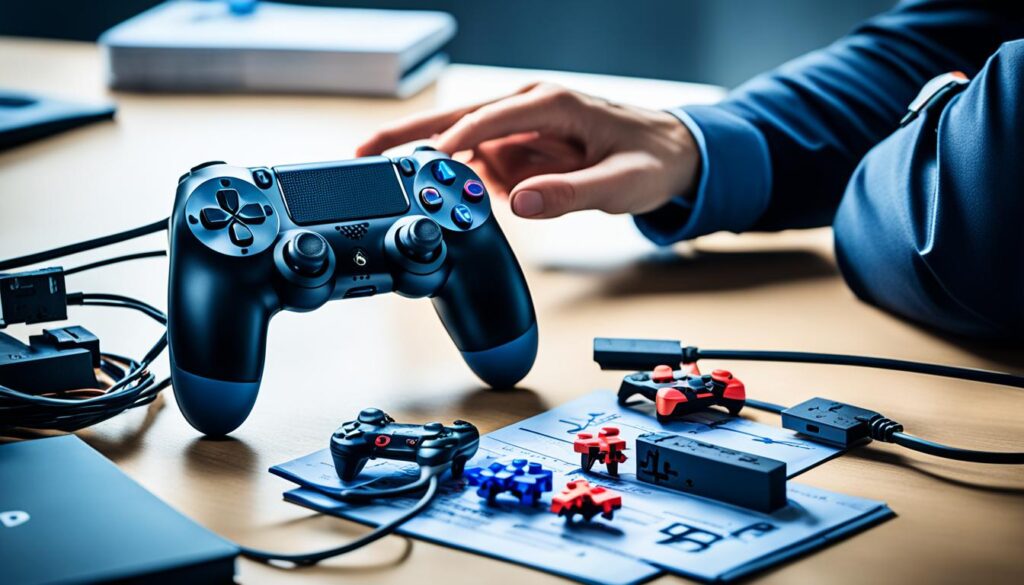
“Troubleshooting your PS4 controller can be a hassle, but with the right steps, you can get it working again in no time.”
Conclusion
Connecting your PS4 controller to your PC is easy and can make gaming better. This guide shows you how to set up your DualShock 4 controller on your computer. You’ll be able to use it with Steam and non-Steam games easily. With the right setup, your PS4 controller can become a great PC gamepad.
This guide helps you choose between wired or wireless connections for your PS4 controller on your PC. It also offers tips to fix common problems like checking device compatibility and making sure the controller is on. These steps help you avoid issues and play games smoothly.
Using your PS4 controller on your PC is still a good choice, even if the PS5 limits its use. The PS4 controller is still a trusted and flexible choice for PC gaming. This guide is a great help for those wanting to use PS4 controller on pc and reach a PS4 controller pc conclusion.
FAQ
What is a Bluetooth dongle for PS4 controller to PC?
How do I connect my PS4 controller to my PC?
What hardware do I need to connect a PS4 controller to my PC?
What software do I need to use a PS4 controller on my PC?
How do I connect my PS4 controller to Steam?
How do I use my PS4 controller with non-Steam games?
How do I connect my PS4 controller to my PC wirelessly?
How do I connect my PS4 controller to my PS4 console?
What should I do if my PS4 controller is not working properly on my PC?
Source Links
- https://ds4-windows.com/how-to-connect-ps4-controller/
- https://www.nacongaming.com/en-GB/blog/how-to-connect-ps4-controller-to-pc?srsltid=AfmBOopHwsRwdGFrr-W1hzDbZ8OdlqXk2_VvzsHD0RaCCxmPHLY83uaD
- https://www.playstation.com/en-us/support/hardware/ps4-pair-dualshock-4-wireless-with-pc-or-mac/
- https://www.businessinsider.com/guides/tech/how-to-connect-ps4-controller-to-pc
- https://retropie.org.uk/docs/PS4-Controller/
- https://www.adorama.com/alc/how-to-connect-a-ps4-controller-to-pc-a-step-by-step-guide/
- https://www.driversupport.com/knowledge-article/how-to-connect-ps4-controller-to-a-pc/
- https://www.tomsguide.com/us/how-to-use-a-ps4-controller-steam,news-24039.html
- https://www.lifewire.com/how-to-use-ps4-controller-steam-4570989
- https://www.techradar.com/how-to/gaming/how-to-use-the-ps4-dualshock-4-controller-on-a-pc-1309014
- https://ds4-windows.com/
- https://www.tp-link.com/us/support/faq/2743/
- https://www.ebay.com/itm/405051401723
- https://www.avantalk.com/products/dg45-usb-bluetooth-dongle-for-pc
- https://ds4-windows.com/troubleshoot/not-detecting-controller/bluetooth/
- https://www.minitool.com/news/ps4-controller-not-connecting-pc-fix.html
- https://medium.com/@vickybaba309/how-to-connect-a-ps4-controller-to-pc-iphone-and-other-devices-04aa963a91f3