
I love playing Roblox and find its controls fascinating. With over 20 million active users, it’s a huge hit. It’s perfect for players of all ages. Mastering the controls is key to enjoying everything Roblox has to offer.
Roblox uses Lua, a simple scripting language. It’s great for making games in Roblox Studio. You need to download and install Roblox Player first, which is free for Windows or Mac.
This guide will cover Roblox controls in detail. We’ll look at the different types and how to use them on your PC. You’ll learn how to move around, talk to others, and even make your own games. Knowing Roblox controls is crucial for a great experience.
Key Takeaways
- Roblox is a highly popular online gaming platform with over 20 million active users
- Lua is the scripting language used in Roblox Studio, known for its ease of use and object-oriented nature
- Roblox Studio is the official construction tool for creating Roblox games, used by programmers and game producers
- Mastering Roblox controls is essential for navigating the virtual worlds, communicating with other players, and even developing games
- This guide will provide a comprehensive overview of the different types of Roblox controls and how to use them effectively on PC
Introduction to Roblox Controls
Roblox is a top gaming platform that offers many controls for players and developers. These controls make the game fun, easy to move around in, and let players customize their experience. Knowing how to use Roblox controls is key for anyone wanting to dive deep into the game’s world.
Importance of Understanding Roblox Controls
Learning Roblox controls is vital for several reasons. It makes playing the game smoother, letting players move and talk with others easily. For developers, it’s crucial for making games that are fun and engaging. They can link actions to different inputs like gamepads, keyboards, and touchscreens. Roblox controls also make the game accessible for everyone, letting players with different abilities join in.
By getting good at Roblox controls, players can find hidden features and move around the game better. Developers can make games that are unique and fun, meeting the needs of the Roblox community.
| Roblox Control Feature | Description |
|---|---|
| Game Controllers Support | Roblox works with USB gamepads like Xbox and PlayStation controllers. You need to set up different gamepads to use them in Roblox. |
| Gamepad Detection | You can check if a player has a gamepad with the UserInputService.GamepadEnabled property. The UserInputService has methods to detect and manage gamepads. |
| Supported Inputs | UserInputService:GetSupportedGamepadKeyCodes() shows the inputs for a controller. |
| ContextActionService | ContextActionService lets you link controls to inputs like gamepads, keyboards, and touchscreens. |
| Gamepad Controls | Common gamepad controls include ButtonA, ButtonB, and more for different actions in games. |
| Haptic Feedback | Controllers with motors can give haptic feedback; check if they support vibration and motors. HapticService:SetMotor() lets you control the vibration on compatible gamepads. |
| Buttons in Roblox | Roblox has TextButton and ImageButton types. These buttons are used for actions and feedback. You can put them on the screen or on parts for better interaction. ImageButtons change images when hovered or pressed. They have properties for different images. Adding buttons and scripting them is easy with Roblox. |
Movement Commands for Roblox
Roblox has many easy-to-use movement commands. These let players move around the game world smoothly. You can use walk to move forward, jump to jump up, and swim to move through water.
For more advanced moves, try the fly command to fly high, sit to sit down, and noclip to go through walls. The teleport command moves your character instantly to a spot, and shiftlock keeps the camera steady.
These commands give players lots of ways to move around Roblox. Learning these controls helps players find hidden spots, finish tough challenges, and even make their own games.
Roblox’s movement commands also work with vehicles. Cars, planes, and boats have their own controls, with some needing special tools and others being easier to use. Some vehicles even have built-in weapons you can use with certain keys.
Over time, Roblox has changed its movement commands. This has affected how players interact with the game and its parts. By learning these commands, players can move around with skill and creativity. This opens up new ways to explore and play the game.
Chat Commands in Roblox
Using Chat Commands Effectively
Roblox has many chat commands to help players talk better and manage their game time. You can use “/mute [username]” to quiet someone, “/unmute [username]” to let them speak again, “/block [username]” to stop them from talking to you, and “/unblock [username]” to talk again.
The “/me [action]” command lets you talk about what you’re doing in the third person. “/Whisper [username] [message]” is for sending private messages. “/Announce [message]” makes a message go out to everyone in the game. And “/kick [username]” lets game hosts kick out troublemakers.
Using these chat commands, players can manage their social life in the game, plan with friends, and try out different ways to communicate. This makes the game more fun and helps everyone work together better.
| Command | Description |
|---|---|
| /mute [username] | Mute another player’s chat messages |
| /unmute [username] | Unmute a player’s chat messages |
| /block [username] | Block a player from contacting you |
| /unblock [username] | Unblock a player |
| /me [action] | Describe an action in the third person |
| /whisper [username] [message] | Send a private message to another player |
| /announce [message] | Send a server-wide announcement |
| /kick [username] | Kick a player from the game |
“Utilizing Roblox chat commands can significantly enhance the player experience, fostering better communication and coordination within the game world.”
Learning these chat commands helps players control their game chats better. This makes the game more fun and enjoyable for everyone.,,
Game Commands for Roblox Players
As a Roblox player, you can use game commands to make your gameplay better. These commands let you change the game world, talk to other players, and use special abilities. The HD Admin model is the best version for Roblox players. Kohl’s Admin Infinite package is a top choice with almost 200 unique commands.
Some key commands are “/respawn” to bring back your character, “/kill [username]” to take out another player, and “/health [amount]” to set your health. There are over a million games on Roblox. You can also use “/gear [id]” to pick gear, “/time [hh:mm]” to set the game time, and “/weather [type]” to change the weather.
Commands like “/follow [username]” and “/unfollow” help you track or stop tracking other players. Some commands might cause errors like Roblox error code 610. The commands here are safe and tested.
| Command | Description |
|---|---|
| /respawn | Respawn your character at the spawn point |
| /kill [username] | Kill a specific player |
| /health [amount] | Set your character’s health to a specific value |
| /gear [id] | Equip your character with a specific gear item |
| /time [hh:mm] | Adjust the in-game time |
| /weather [type] | Change the weather conditions in the game |
| /follow [username] | Follow another player |
| /unfollow | Stop following another player |
These commands are a great tool for Roblox players. They let you customize your game and explore more. The article lists popular Roblox commands for players. Commands like ‘:fire’, ‘:sparkle’, ‘GodMode’, ‘jump’, ‘invisible’, ‘givetools’, and others are examples.
Be careful with commands you haven’t checked out or seen here. This guide helps you get admin rights in Roblox to use the commands well.
“Roblox admin commands provide players with access to locked actions within the platform.”
Admin Commands in Roblox
Roblox gives game admins and moderators powerful tools to manage the game and players. They can kill, respawn, kick, ban, unban, mute, unmute, and let players fly using commands.
Responsible Use of Admin Commands
Admin commands are great for keeping the game in order. But, they should be used carefully. Roblox has a system that lets you control who can use these commands.
It’s important for admins and mods to use these commands wisely. They should only be used to stop bad behavior, protect the game, or make sure everyone has fun. Using them too much can upset players and hurt the game’s trust.
Before using strong commands, try reporting and muting players first. This helps keep the game positive and fair for everyone.
Roblox also has a system for controlling who can use these commands. Developers can use the Adonis admin system for more control and custom commands.
Using admin commands wisely is key to a good game experience for everyone. By being careful with these tools, admins and mods can keep their games fair and fun.
Scripting Commands for Roblox Developers
Roblox developers use scripting commands to make custom game parts, test features, and fix scripts. They include the “wait()” function to pause the script for a time. There’s also “Instance.new([class])” to make a new class instance, and “game.Players.PlayerAdded:Connect(function(player))” to link a function to the PlayerAdded event. They can remove a part with “workspace.Part:Destroy()”, get a service with “game:GetService([service])”, and delete an instance with “Instance:Destroy()”.
Knowing Roblox scripting commands can change the game for developers. The “script.Parent” lets you get the parent of the script. The “Instance:WaitForChild([childName])” command makes scripts wait for a child to load before going on. With Luau, the language used in Roblox scripting, developers can make unique and fun Roblox games.
Luau is based on Lua 5.1 and has better performance and features like optional typing and string interpolation. It also has gradual typing and prefers local variable and function declarations. Luau’s tables work as both arrays and dictionaries, starting at index 1 and using curly braces.
To use Roblox scripting fully, developers need to know Roblox Studio’s development environment. This includes adding scripts, renaming them, editing in the Script Editor, and running scripts to see the results. Setting up the Script Editor with the right font, colors, and autocomplete helps with development. Tools like the Output window, Script Analysis window, and logging help with debugging and understanding scripts.
By learning Roblox scripting commands, developers can do amazing things. They can change game elements, automate tasks, and make the game better for players. These tools are key to making fun and new Roblox games.
Studio Commands for Roblox Development
Streamlining Roblox Development with Studio Commands
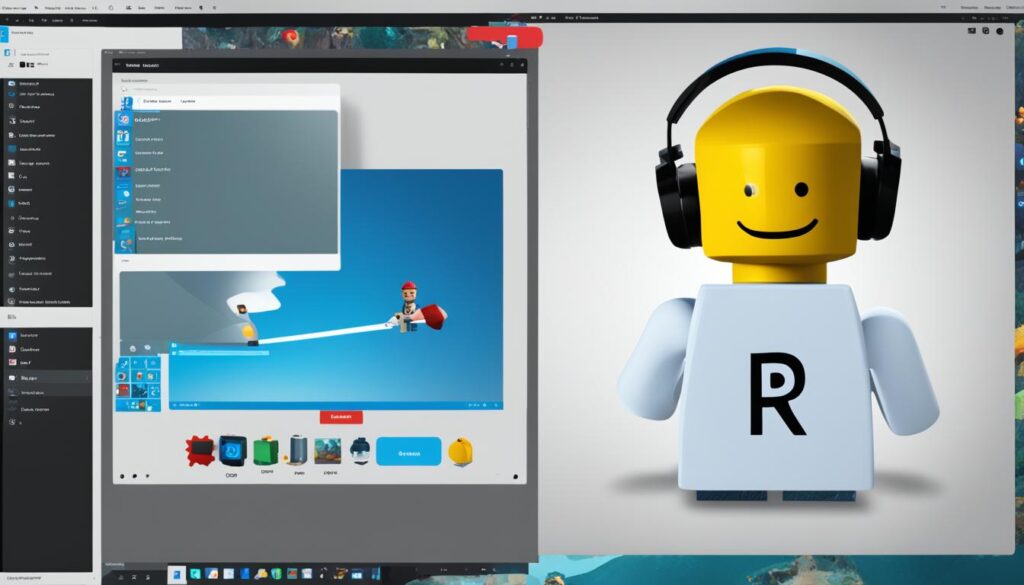
Roblox Studio has more than just scripting commands for game development. It has a powerful set of commands that make making games easier. You can find these commands in the Command Bar at the bottom of the screen. They help developers work better and make games more fun.
Key commands include making new objects, using game services, and automating tasks. These commands help developers work faster, be more productive, and make their games better.
The “Zoom To” command lets developers quickly focus the camera on something in the game. The “Play/Pause/Resume” and “Stop” commands make testing easy. The Developer Console, opened with the F9 key or “/console” chat command, has tools for fixing problems, managing memory, and improving performance.
Learning Roblox Studio commands helps developers work better, make their games more fun, and improve their skills.
| Command | Description |
|---|---|
| Create New Instance | Adds a new object to the game world |
| Access Game Services | Interacts with various game systems and features |
| Automate Repetitive Tasks | Streamlines common development workflows |
| Zoom To | Focuses the camera on a selected part or model |
| Play/Pause/Resume | Controls simulation and testing of the game |
| Developer Console | Provides tools for troubleshooting, memory management, and performance optimization |
“By mastering the Roblox Studio commands, developers can streamline their development process, optimize their workflows, and create more engaging and polished Roblox experiences.”
controls for roblox on pc
Roblox has many controls for players to use on a PC. These controls for roblox on pc include keyboard, mouse, and gamepad options. This gives players many ways to improve their Roblox experience.
The roblox keyboard controls are key for moving around. Players use WASD to move, the spacebar for jumping, and the mouse to look around and interact with things.
For a deeper gaming experience, roblox gamepad controls are an option. Players can use their Xbox or other controllers. The thumbsticks move your character, and the buttons do things like jump, shoot, or open doors.
Customizing roblox pc controls can really help a player play better. By changing the key settings and linking actions to preferred devices, players can make their controls fit their style.
Knowing and using the many roblox controls on PC is key for players to dive deep into Roblox. They can switch between keyboard, mouse, and gamepad easily. This lets players find the best control setup for them and explore, create, and play more effectively.
Optimizing Roblox Controls for All Devices
Roblox works on many platforms, from PCs to mobiles and consoles. To get the best gaming, it’s key to set up the controls for each device. By customizing Roblox controls, players can make the game more fun and responsive.
Tips for Customizing Roblox Control Settings
For PC players, it might mean tweaking keyboard and mouse settings, changing button layouts, or using gamepads. Mobile users should try different touch gestures and control layouts to find what feels best. Console players can adjust their controller settings to match how they like to play.
No matter the device, the secret is to check out the settings and make them your own. Taking the time to customize can make your gameplay better, improve how quick you react, and give you a deeper Roblox experience.
| Device | Optimization Tips |
|---|---|
| PC |
- Adjust keyboard and mouse sensitivity
- Remap buttons to suit your preferences
- Integrate gamepad support for a more console-like experience
| Mobile |
- Experiment with touch screen gestures
- Customize on-screen control layouts
- Find the most comfortable and intuitive setup
| Console |
- Fine-tune controller mappings
- Adjust sensitivity and deadzone settings
- Optimize controls to match your playstyle
By setting up Roblox controls for your device, you can make gaming more fun and responsive, whether on a PC, mobile, or console.
Troubleshooting Common Roblox Control Issues
While Roblox controls are easy to use, players might face issues now and then with their roblox control setup. This could be due to hardware issues, software problems, or mistakes in setting it up. Players might see controls not working right, have trouble with keyboard, mouse, and gamepad inputs, or find it hard to use certain in-game commands.
To fix these roblox control issues, players can try a few things. They can update their device drivers, change settings in the Roblox client or studio, or look for help from the community. By doing this, players can make sure their Roblox experience is smooth and fun.
- Update Device Drivers: Make sure your computer’s graphics card, input devices, and other hardware have the latest drivers. Old or wrong drivers can cause roblox control issues.
- Adjust Roblox Control Settings: Check the in-game settings and controls menu to change your input preferences, sensitivity, and key bindings. Try different settings to find the best roblox control setup for you.
- Seek Community Support: Use Roblox forums, Discord servers, or other online groups to find solutions to your roblox control troubleshooting problems. Other players might have solved similar issues and can share tips or workarounds.
By taking these steps, you can solve any roblox control problems you run into. This ensures a smooth and fun gaming experience.
“Roblox is a platform that allows users to create and play their own games, and it’s important for them to have a smooth and responsive control system to fully enjoy the experience.”
Conclusion
Understanding roblox controls, roblox pc controls, and the full roblox control guide is key for players and developers. It helps them use this online gaming platform to its fullest. Developers like Berry Ave and Theme Park Tycoon 2 show how to make UI designs better with the API. But, many developers are unhappy with the latest Roblox update, especially the changes to GUI, and want more control over UI customization.
Roblox controls cover everything from moving characters to chatting and advanced roblox control optimization and studio tools. It’s a game and a place to make games, with updates happening often. The latest update was on 6/19/2024 at 12:35 AM UTC. A useful shortcut is F10 to adjust graphics level, rated 91% for ease of use.
By learning about roblox control troubleshooting and optimizing settings, users can make the most out of Roblox. It’s great for exploring, creating, and dominating in virtual worlds. Whether you’re experienced or new, getting good at Roblox controls is essential to enjoy the platform fully.
FAQ
What are the different types of Roblox controls?
How do Roblox movement commands work?
What chat commands are available in Roblox?
How can Roblox players use game commands?
What are Roblox admin commands, and how should they be used?
What scripting commands are available for Roblox developers?
How can Roblox Studio commands streamline the development process?
What are the standard Roblox controls for PC players?
How can players optimize Roblox controls for their preferred device?
What are some common Roblox control issues, and how can they be resolved?
Source Links
- https://www.jetlearn.com/blog/learn-roblox-scripting
- https://create.roblox.com/docs/input/gamepad
- https://create.roblox.com/docs/ui/buttons
- https://roblox.fandom.com/wiki/Controls
- https://www.ign.com/wikis/roblox/ROBLOX_Admin_Commands_and_How_To_Use_Them
- https://devforum.roblox.com/t/how-to-make-admin-commands-that-dont-appear-in-chat/930564
- https://codakid.com/roblox-commands/
- https://beebom.com/roblox-admin-commands-how-to-use/
- https://devforum.roblox.com/t/adonis-admin-setup-guide-for-developers/1535122
- https://create.roblox.com/docs/tutorials/scripting/basic-scripting/intro-to-scripting
- https://create.roblox.com/docs/scripting
- https://devforum.roblox.com/t/full-tutorial-how-to-script-on-roblox-beginners/1991385
- https://create.roblox.com/docs/resources/battle-royale/running-the-game
- https://create.roblox.com/docs/studio/shortcuts
- https://create.roblox.com/docs/studio/developer-console
- https://devforum.roblox.com/t/xbox-controls-and-keyboard-and-mouse-key-mapping/1984266
- https://devforum.roblox.com/t/performance-considerations-improvements-and-optimizations-when-making-a-game/817499
- https://www.commonsensemedia.org/articles/parents-ultimate-guide-to-roblox
- https://www.bark.us/blog/is-roblox-safe-for-kids/?srsltid=AfmBOoqv7bDcIFokGGuOydoVezf_zzX1iSBChyLQQNVUN5FuKtj-j2pD
- https://devforum.roblox.com/t/updated-in-experience-controls-on-roblox/3028958?page=2
- https://devforum.roblox.com/t/icymi-experience-controls-test-starting-november-20/2702634?page=3
- https://defkey.com/roblox-shortcuts