
As a dedicated PC gamer, I know how tough it can be to find the right controller setup. It feels like searching for a needle in a haystack. But don’t worry, I’m here to introduce you to a game-changer – DS4Windows.
DS4Windows lets you use your PlayStation 4 controller or other gamepads on your Windows PC. It turns your controller into a virtual Xbox 360 or DualShock 4 gamepad. This opens up a whole new world of gaming possibilities for you.
Key Takeaways
- DS4Windows supports a wide range of controllers, including DS4 v.1, DS4 v.2, Razer Raiju, Hori PS4 Mini controller, and more
- DualShock 3 (DS3) requires specific drivers for Bluetooth connectivity
- DualShock 4 (DS4) and DualSense 5 (DS5) controllers offer extensive functionality, with some limitations
- DS4Windows may have issues recognizing certain replica or copycat controllers
- The DS4Windows software has been downloaded over 313,000 times and is regularly updated
In this guide, we’ll dive into DS4Windows and its features. We’ll cover how to set it up and troubleshoot any issues. This guide is for both new and experienced PC gamers. It will help you take control of your gaming setup like never before.
What is DS4Windows and How It Works
DS4Windows is a powerful software that lets users connect their PlayStation DualShock 4 or DualSense controllers to Windows 10/11 PCs. It turns these controllers into virtual Xbox or DualShock 4 gamepads. The program creates a virtual gamepad that acts like the real controller, offering many customization options.
With DS4Windows, users can change button settings, adjust stick and trigger sensitivity, and use motion sensors for more functions. This software makes sure your controller works well by acting like an Xbox 360 or DualShock 4 controller. This lets users play games meant for other controllers.
Key Features and Benefits
- Ability to connect and use PlayStation DualShock 4, DualSense, and other compatible controllers on Windows PCs
- Full customization options, such as remapping buttons, adjusting stick and trigger sensitivity, and configuring motion sensor controls
- Emulation of either Xbox 360 or DualShock 4 controllers for maximum game compatibility
- Bypassing games’ control scheme limitations by remapping functions to different buttons
- Enabling the use of PlayStation controllers in games that only support Xbox controllers
- Allowing wireless Bluetooth connection of controllers for a cleaner gaming setup
DS4Windows is a versatile tool for both casual and hardcore gamers who prefer PlayStation controllers on their Windows PCs. Its easy-to-use interface and many customization options make it a favorite among PC fans.
In summary, DS4Windows is a must-have for PC gamers who want to use their PlayStation controllers easily. It ensures a smooth and customizable gaming experience.
Prerequisites for Using DS4Windows
To use DS4Windows, you need a few things ready. First, your computer must run Windows 10 or Windows 11. Older versions like Windows 8.1 won’t work. You also need a compatible controller, like the Sony DualShock 4, Sony DualSense, Nintendo Joy-Con, or Switch Pro Controller.
System Requirements
For a smooth DS4Windows experience, make sure your system has Microsoft .NET 8.0 for Desktop Apps installed. This is key for DS4Windows to work right. Sometimes, you might also need Visual C++ 2015-2019 Redistributable to fix compatibility problems.
Supported Controllers
DS4Windows supports many controllers, including the Sony DualShock 4 and DualSense. It also works with Nintendo Joy-Con and Switch Pro Controller, plus third-party controllers that mimic the originals.
Remember, while DS4Windows fits many controllers, you might need extra drivers for it to work well. The ViGEmBus driver is a must for virtual controllers. The HidHide driver helps avoid double input problems in some programs.
In some cases, like with games against cheaters, you might need the FakerInput driver for full compatibility. DS4Windows is the main tool to manage these drivers and settings for great gaming.
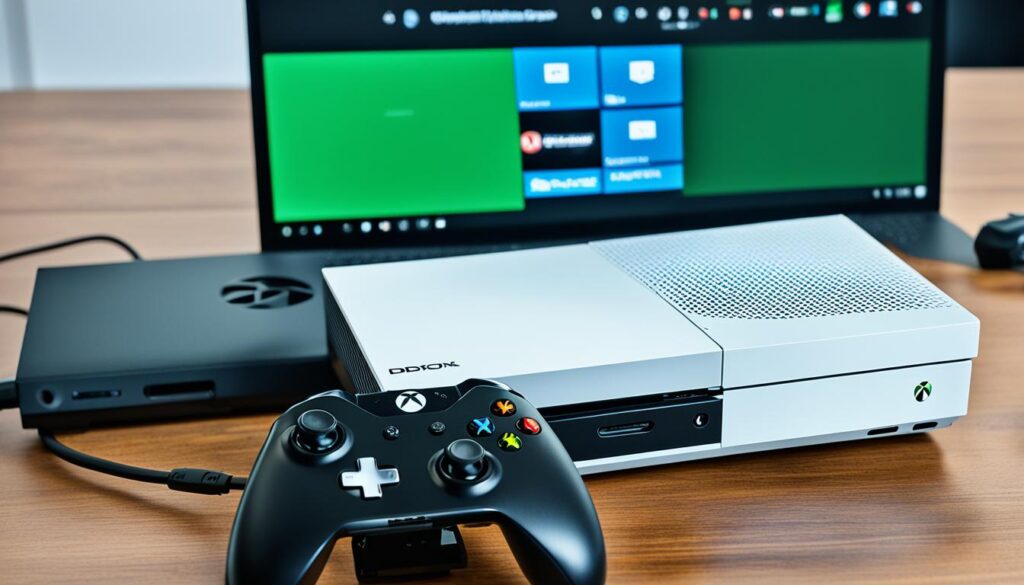
Downloading and Installing DS4Windows
To start with DS4Windows, first download the latest version. This software, made by the Ryochan7 community on GitHub, lets gamers use their DualShock 4 (DS4) and DualSense (DS5) controllers on Windows 10 or 11 PCs. It’s important to note that DS4Windows only works with Windows 10 or 11, not older versions.
Download the Latest Version
Go to the DS4Windows GitHub repository at https://github.com/Ryochan7/DS4Windows/releases to download the newest software. The latest version is 3.3.3, so always check for updates. After downloading, put the x64 or x86 package in a folder on your desktop or documents.
Installation Steps
- Find the DS4Windows folder and open DS4Windows.exe to start the app.
- At first run, DS4Windows will ask where to save user data like settings and profiles. Pick the AppData folder to keep it separate from the program’s files.
- You might need to install drivers like ViGEmBUS, HidHide, and FakerInput. Follow the prompts to install these for the software to work right.
- After setting up, plug in your controller with a USB cable or Bluetooth, and DS4Windows should find it automatically.
Just follow these easy steps, and you’ll be all set with DS4Windows. It’s ready to boost your gaming with lots of customization and controller support.
Initial Setup and Configuration
When you start DS4Windows for the first time, you’ll need to set up some initial settings. A key step is picking where to store the program’s data, like settings and profiles. It’s best to choose the AppData folder. This keeps the data separate from the DS4Windows installation and makes it easy to find. Or, you can store the data in the same folder as the DS4Windows.exe file. But, you might need extra permissions to access that folder.
Installing Required Drivers
DS4Windows needs certain drivers to work right. When you start the program for the first time, it will ask you to install these drivers, including:
- ViGEmBUS: This driver lets DS4Windows create virtual Xbox or DualShock 4 gamepads. It’s key for the program to work.
- HidHide: This driver is a must-have. It “hides” the real controller from your system, preventing problems with double inputs when both the real and virtual controllers are used at once.
- FakerInput: This driver is optional but can improve performance and make the controller work better as a keyboard and mouse.
Just follow the instructions on the screen to install the needed drivers before you set up further.
The DS4Windows troubleshooting section has guides to fix common issues users face.
| Supported Operating Systems | Supported Controllers |
|---|---|
| Windows 10 or 11 | DualSense, DualShock 4, Nintendo Switch / Pro, etc. |
| Windows versions from 8.1 and below not supported | Many controllers work well |
You’ll also need to download and install the .NET 6.0 Runtime (x64 Bit) on your Windows 10/11/8.1 PC to use DS4Windows well.
By doing these setup steps, you’ll get DS4Windows ready to use with your ps4 controller windows, xbox one controller driver, dualsense pc, or other compatible controllers.
ds4 windows xbox one controller
After installing DS4Windows and the needed drivers, connect your controllers to the program. DS4Windows will automatically find any connected controllers, whether through USB or Bluetooth.
For a USB connection, just plug in your ds4 windows xbox one controller, ps4 controller windows, or xbox one controller driver with a USB cable. Windows will notice the device, and it will show up in the DS4Windows main window.
Pairing Modes for Different Controllers
To pair your controllers with DS4Windows via Bluetooth, here’s what to do:
- DualShock / DualSense: Press and hold the PS + Share buttons until the lightbar starts flashing in a heartbeat pattern.
- Joy-Con / Switch Pro: Press the sync button until the controller LEDs start flashing back-and-forth.
- Copy-cat / Replica controllers: The pairing is usually the same as official controllers, but check the manual if unsure.
Once your dualsense pc or playstation controller pc is in pairing mode, add it as a Bluetooth device in Windows’ settings. If asked for a PIN, try “0000”.
| Controller Type | Pairing Instructions |
|---|---|
| DualShock / DualSense | Hold PS + Share buttons until lightbar flashes |
| Joy-Con / Switch Pro | Hold sync button until LEDs flash back-and-forth |
| Copy-cat / Replica | Refer to controller manual for pairing process |
Once paired, your controller will be detected by DS4Windows. This lets you use it with your PC games and apps.
Preventing Double Controller Input Issue
Using DS4Windows might lead to the “double input” or “double controller” issue. This happens because DS4Windows makes a virtual gamepad linked to the real controller you’re using. If a game sees both the real and the virtual gamepad at once, it gets commands from two places. This can cause problems like unresponsive controls, wrong inputs, or the game thinking there are two players.
Understanding the Double Input Problem
The double input issue comes from how DS4Windows works. When you plug in a real controller, DS4Windows makes a virtual gamepad that acts like the real one. This virtual gamepad lets you control games and apps smoothly. But, if a game also sees the real controller, it can lead to problems.
Hiding Real Controllers
To avoid the double input issue, hide the real controller from your system, so only the virtual gamepad is seen by games and apps. Installing the HidHide driver is a good idea during DS4Windows setup. With the real controller hidden, games will only see the virtual one, making gaming smooth and reliable.
The HidHide Configuration Client makes setting up easy, guiding you through steps to hide your real controllers. Remember, don’t hide controllers named “Sony COMPUTER (…)”, as they’re virtual DS4 controllers made by DS4Windows and should be shown. Also, if HidHide is set up right, don’t turn off the “Hide DS4 controllers” option in DS4Windows to avoid problems.
By hiding real controllers with HidHide, you can fix the double input issue. This lets you have a smooth gaming experience with your ds4 windows xbox one controller, ps4 controller windows, xbox one controller driver, dualsense pc, or playstation controller pc.
Customizing and Remapping Controllers
DS4Windows lets you make and change custom profiles for your controllers. This means you can change the controller to fit what you like, whether it’s a ds4 windows xbox one controller, ps4 controller windows, or another gamepad.
In the profile editor, you can change button settings, adjust stick and trigger sensitivity, and set up more settings to make gaming better. This is great for games that don’t let you change the controller settings or if you play differently.
Creating and Editing Profiles
Start by going to the profile editor in DS4Windows. You can make new profiles or change old ones to fit what you need. The editor is easy to use, letting you change button functions, adjust stick and trigger sensitivity, and link keyboard and mouse actions to your controller.
Remapping Buttons and Sticks
DS4Windows lets you change the buttons and sticks on your controller. Just go to the profile editor and switch the functions to what you want. For example, you can swap the face buttons, change the joysticks, or make custom macros for button presses.
With DS4Windows, you can make your controller work just how you want it for your games. This is great whether you’re using a dualsense pc, playstation controller pc, or another gamepad. DS4Windows gives you the power to customize.
“The ability to remap buttons and customize controller profiles in DS4Windows has been a game-changer for my gaming setup. It’s allowed me to fine-tune my controls to perfectly match my playstyle.”
| Feature | Description |
|---|---|
| Button Remapping | Reassign the functions of your controller’s buttons to suit your preferences. |
| Stick Sensitivity | Adjust the sensitivity of the joysticks for precise movement and camera control. |
| Trigger Adjustments | Fine-tune the responsiveness of your controller’s triggers for improved accuracy. |
| Macro Bindings | Assign complex in-game actions to a single button press for streamlined gameplay. |
Advanced Settings and Tweaks
The DS4Windows utility offers more than just basic controller remapping for a better gaming experience. You can pick the type of virtual controller you want to emulate, like an Xbox 360 or a DualShock 4. The Xbox 360 controller is the default choice for the most game compatibility. But, you can switch to a DualShock 4 controller layout if you prefer, though some games might not work well with it.
The newest DS4Windows version (3.3.3) has an Output Slots tab for advanced settings. Here, you can customize how the virtual controllers work with your system. Usually, sticking with the “Dynamic” settings is best for great performance and compatibility.
Customizing Virtual Controller Profiles
In the Output Slots tab, you can tweak settings like deadzone values and output curves for the controller sticks and triggers. You can also adjust the sensitivity and add two-stage trigger functionality for better precision.
For those who care about camera control and gyroscope input, DS4Windows lets you customize these settings. You can also set up your mouse joystick to work with the gyro output and adjust the sensitivity of the analog sticks.
Advanced users might like the “Use DInput only” option for a full keyboard and mouse setup. The “Enable touchpad toggle” feature lets you turn the touchpad mouse on or off as needed.
With these advanced settings, DS4Windows helps you customize your gaming for better performance and control. It’s a great tool for gamers who want to improve their Windows gaming experience with their controllers.
Conclusion
DS4Windows is a powerful tool for PC gamers. It lets you use controllers like the PlayStation DualShock 4 and DualSense with your games. You can create virtual Xbox or DualShock 4 gamepads for better compatibility and customize settings as you want.
It helps fix issues like remapping buttons and adjusting stick sensitivity. This makes your PC gaming experience better.
DS4Windows is great for both casual and serious gamers. It makes your favorite controllers work better on Windows 10 or 11 systems. It supports Xbox PC games, gyro aiming, and helps solve common controller problems.
If you want to improve your gaming setup, check out DS4Windows. It has an easy-to-use interface and many customization options. You can make your controller experience perfect and enhance your PC gaming.
FAQ
What is DS4Windows and how does it work?
What are the key features and benefits of using DS4Windows?
What are the system requirements and supported controllers for DS4Windows?
How do I download and install DS4Windows?
How do I set up DS4Windows for the first time?
How do I connect my controllers to DS4Windows?
How do I prevent the “double input” or “double controller” issue?
How do I customize and remap my controllers using DS4Windows?
What are the advanced settings and tweaks available in DS4Windows?
Source Links
- https://ds4-windows.com/supported-controllers/
- https://ds4-windows.com/download/hidhide/
- https://ds4-windows.com/about/
- https://ds4-windows.com/
- https://ds4-windows.com/drivers/
- https://ds4-windows.org/getting-started/
- https://ds4-windows.com/get-started/
- https://ds4windows.dev/
- https://kanuan.github.io/DS4WSite/guides/install-setup/
- https://ds4windows.dev/getting-started/
- https://ds4-windows.com/troubleshoot/not-detecting-controller/
- https://ds4-windows.com/alternatives/
- https://kanuan.github.io/DS4WSite/guides/solving-double-input/
- https://www.tomsguide.com/opinion/i-use-this-app-to-completely-customize-my-gaming-controllers-on-pc-heres-how-it-works
- https://github.com/Ryochan7/DS4Windows/wiki/Settings
- https://ds4-windows.dev/
- https://stackoverflow.com/questions/67442029/how-to-customize-gamepad-controller-joystick-output-sensitivity-in-windows-10
- https://www.resetera.com/threads/ds4windows-is-one-of-the-most-essential-and-frustrating-programs-for-pc-gaming.544115/
- https://ds4-windows.org/troubleshoot/virtual-controller/