
Remember the sound of your SPARTAN’s boots on alien ground? The hum of your shield saving you from bullets, and the feel of a well-placed shot. Halo Infinite is here, bringing new keyboard and mouse controls to learn.
If you’re a Halo fan, finding the right controls is key to better gameplay. This guide is for both PC veterans and newcomers to Halo. It will help you use your keyboard and mouse to dominate the game. Get ready to show off your skills as a Halo Infinite keyboard master.
Key Takeaways
- Discover the default Halo Infinite keyboard controls and key mappings for PC
- Learn how to customize your keybindings and control settings for maximum efficiency
- Optimize your Halo Infinite PC settings for the best possible performance and visual quality
- Master essential keyboard techniques and tactics to outmaneuver your opponents
- Understand the pros and cons of keyboard and mouse versus controller in Halo Infinite
Introduction to Halo Infinite Keyboard Controls
Halo Infinite brings back the classic arena shooter action fans love. But, PC players might find the controls tricky, especially with mouse and keyboard. This guide will help you master Halo Infinite’s keyboard controls and dominate the game.
The Halo series has always offered various controller setups, catering to different players. From the first game to Halo: Reach, players could customize their controls. In Halo Infinite, you’ll find many options to adjust your keyboard and mouse setup.
Whether you’re new to Halo or a pro, learning the game’s keyboard controls is key to winning. Halo Infinite lets you customize everything from button layouts to aiming settings. By optimizing these controls, you’ll beat your opponents and win the game.
We’ll now explore Halo Infinite’s keyboard controls in detail. We’ll cover default settings, vehicle controls, and how to customize them. Plus, we’ll share tips to improve your gameplay and success in Halo Infinite.
Halo Infinite PC Keybindings
When you start playing Halo Infinite on your PC, it’s important to learn the game’s default keyboard controls and keybindings. These controls help you move around the game world, fight, and control vehicles.
Default PC Keyboard Controls
The game has many keyboard controls for different actions. You’ll find keys for moving, fighting, and controlling vehicles and cameras. Actions include going up or down, doing tricks, boosting, switching seats, firing weapons, and more.
You can also change the camera view to first-person, third-person, free, or cinematic. Plus, you can zoom in, turn on the helmet light, use the campaign menu, chat, and control player and team stats.
Vehicle PC Keyboard Controls
For vehicles in Halo Infinite, the keyboard controls are key. You’ll use specific keys for boosting, going up or down, switching seats, and more.
Knowing these controls helps you move and use vehicles well. Whether you’re flying a Banshee or driving a Warthog, getting the hang of these commands is crucial.
To change your controls, go to the Control Panel, then Settings, and pick Keyboard/Mouse to customize.
Halo Infinite is made by 343 Industries and published by Xbox Game Studios. It comes out on December 8, 2021, and lets players explore a semi-open world.
Learning the default controls and keybindings will help you get better at the game. You’ll be able to move around and fight like a pro, on foot or in a vehicle.
Xbox Controller Controls for Halo Infinite
This guide focuses on keyboard and mouse controls, but knowing the Xbox controller layout for Halo Infinite is key. Halo Infinite lets you use a mouse and keyboard on the Xbox Series X, giving players more control options. It’s noted that “Sprint” in the game is unlimited, meaning characters won’t get tired, offering great mobility.
Default Xbox Controller Layout
The Xbox controller setup includes a “Melee attack” by default, which is a blow with the weapon’s butt, showing how to fight up close. The Legacy layout changes the controller, moving the zoom to the right stick and melee to the right bumper, and the equipment to the left bumper, similar to the original setup. Top Halo players prefer the Bumper Jumper layout, putting jump and melee on the bumpers for quick use in the game.
Vehicle Xbox Controller Controls
Halo Infinite lets players customize their controls, including flight inversion, which many choose. Players can also toggle settings for sprinting, aiming, and crouching to suit their playstyle. Finding the right balance for sensitivity and acceleration settings is key, with small changes recommended.
| Setting | Recommended Value |
|---|---|
| Look Acceleration | 3 |
| Look Sensitivity (Horizontal and Vertical) | 6.5 |
For Halo Infinite, it’s advised to set look acceleration to 3 and look sensitivity to 6.5 for all movements. Adjusting deadzone settings for thumbsticks can improve responsiveness, but be careful not to cause controller drift. Tweaking settings like Center Deadzone, Max Input Threshold, and Axial Deadzone can make movement and aiming smoother.
Customizing Halo Infinite Keyboard Controls
Playing Halo Infinite on PC lets you customize your keyboard controls to fit your style. You can change key mappings, adjust sensitivity, and make controls more comfortable. This makes the game more fun and efficient.
To start with halo infinite key remapping, go to the game’s settings and find the “Keyboard & Mouse” section. You’ll see a list of keybindings for movement, aiming, and more.
- Think about moving actions like reload and melee to easy-to-reach keys or side mouse buttons for speed.
- Try different sensitivity settings to get the right mix of precision and speed. Remember, turn off mouse acceleration for the best performance in Halo Infinite.
- Customize halo infinite custom keybinds to fit your playstyle. Make sure your most used actions are on the most comfortable keys for you.
Customizing your Halo Infinite controls will give you an edge and make the game more enjoyable. PC gaming lets you tailor your experience to your liking. This can help you perform better in the game.
| Keybind | Recommended Key |
|---|---|
| Reload | R |
| Interact | E |
| Equipment | G |
| Sprint | Shift |
| Crouch/Slide | Ctrl |
| Melee | Mouse 5 (side button) |
| Switch Weapons | Mouse Wheel |
| Ping | V |
| Drop Weapon | G |
“By empowering players to fully customize their controls, Halo Infinite takes a significant step forward in catering to the diverse preferences of the PC gaming community.”
halo infinite keyboard controls
Getting better at Halo Infinite’s keyboard controls means improving how your character moves and aims. The game lets you tweak settings like sprint speed, crouch, sensitivity, and acceleration. This way, you can balance speed and accuracy to win.
Movement and Aiming Settings
Halo Infinite has many control options for players, including settings for both controllers and mouse/keyboard setups. You can sprint without getting tired, crouch, jump, and slide while sprinting. This makes moving around the game world easy.
For aiming, the keyboard controls are key. You can adjust how sensitive your controller sticks and mouse are for better gameplay. You can also tweak mouse acceleration to improve your aim.
Sensitivity and Acceleration Adjustments
Getting the right sensitivity and acceleration is crucial for Halo Infinite’s keyboard controls. The guide advises turning off mouse acceleration and trying different sensitivities to match your DPI for the best gameplay. You can also customize keybinds for various actions like reloading and switching weapons.
Using side mouse buttons is also a good idea, especially with the Kone Pro Air mouse’s fast side buttons.
Optimize Halo Infinite PC Settings
Make your Halo Infinite game on PC better by tweaking your display and graphics settings. These settings help your game run smoothly and keep the amazing visuals that make Halo stand out.
Display and Graphics Settings
First, set your Field of View (FOV) to 100 or higher for a more immersive game. Also, turn on the compressed audio mode to get a competitive edge with clearer sounds. For better visibility, disable screen shake and blur, and increase the reticle outline’s opacity and thickness in the accessibility settings.
Adjust the UI margins and customize weapon offsets to your liking. Improve your zoom sensitivity and mouse settings for better aiming. And, personalize your keybindings to fit your style.
By optimizing these halo infinite pc settings, halo infinite graphics settings, and halo infinite performance options, you’ll get the best out of your Halo Infinite game. You’ll be ready to take on the battlefield.
Halo Infinite Keyboard Shortcuts
Halo Infinite has many keyboard shortcuts and quick actions. These can make you more efficient and quick in battle. Learning these commands lets you switch weapons and use game systems fast without losing your flow.
Some top keys in Halo Infinite are the Space bar, R, and Q, each used a lot. Most actions are spread out, with movement controls using 32.26% of the keys. Combat actions take up 25.81%, and functional keys like interacting and zooming use 19.35%. Specialized functions like AI scanning use 22.58%.
Here are some key shortcuts in Halo Infinite:
- Switch Weapon: Press 1, 2, 3, or 4 to quickly select your weapon slots.
- Reload: Tap the R key to reload your current weapon.
- Throw Grenade: Press G to toss a grenade.
- Melee Attack: Use the F key to execute a melee strike.
- Enter/Exit Vehicle: Press the E key to interact with vehicles.
- Scoreboard: Press Tab to view the in-game scoreboard.
- Toggle Equipment: Press Q to activate your equipped gear or ability.
- Sprint: Hold the Shift key to enter a sprint.
These shortcuts, along with customizing your controls, can boost your game performance. They help you react faster, stay agile, and win in Halo Infinite.
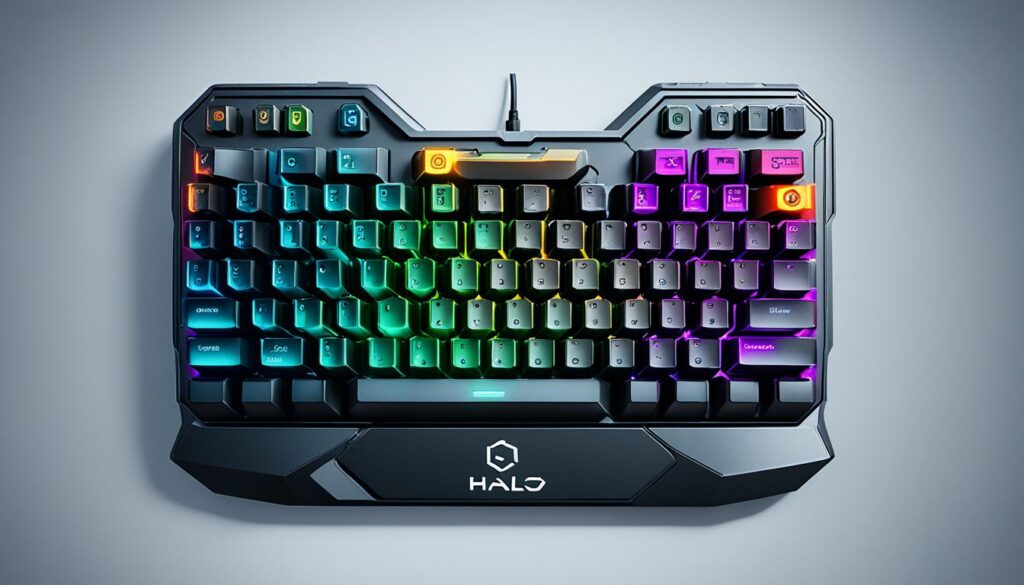
Players can also use universal PC shortcuts to improve their gameplay. These include saving progress with Ctrl + S, copying with Ctrl + C, and pasting with Ctrl + V. The Win + X shortcut opens system functions, and Ctrl + Alt + Delete shows security options.
Using these shortcuts in Halo Infinite makes your actions smoother and quicker. With practice and customization, these controls will feel like part of your gaming.
Tips for Efficient Keyboard Mapping
There are ways to make your Halo Infinite keyboard controls better than the default settings. By changing your key mappings, you can make sure your hands are always in the best spot. This helps you make quick and precise moves.
Customize for Comfort and Efficiency
First, figure out the actions you use most in Halo Infinite, like moving, aiming, shooting, and using gear. Put these actions on the easiest keys for your hands. This cuts down on reaching and keeps you quick in fights.
Think about putting movement controls (forward, backward, side to side) on the WASD keys. This setup is easy to get used to and helps you move faster.
For switching weapons, picking grenades, and using gear, use keys near the movement ones, like Q, E, and F. This keeps your main hand steady and lets you quickly do these important actions.
Customizing your Halo Infinite controls takes time and trying different things, but it’s worth it. By focusing on comfort and speed, you’ll react quicker, do actions more accurately, and beat others online.
“Mastering the keyboard is key to dominating Halo Infinite’s fast-paced combat. With the right custom controls, your gameplay will reach new heights.”
Mastering Halo Infinite Keyboard Combat
Now that you’ve got your keyboard controls down, it’s time to level up your Halo Infinite skills. Using a mouse and keyboard, you can outshine others with precise techniques and tactics. From quick-scoping to managing grenades, let’s dive into strategies that will boost your halo infinite keyboard gameplay and halo infinite pc tactics.
Being accurate is crucial in Halo Infinite. Controllers are 10 to 15 percent more accurate than a mouse in the game. To beat this, use the strong aim assist on controllers for better accuracy. The Halo Theorem and K players offer great advice and support to improve your Battle Rifle (BR) aim.
To improve your halo infinite keyboard combat, turn off mouse acceleration. This makes your mouse movements consistent, leading to better aim and control. Also, hold the left click while firing to add reticle friction and boost your aim.
When fighting, aim at the chest for a higher hit chance. Time your shots with the BR’s burst pattern for better accuracy and efficiency. Always take out opponents’ shields first before going for headshots to deal the most damage.
Improving at halo infinite keyboard combat takes time. Getting advice from the Halo community and online guides can give you new strategies to try.
By using these tips and tactics, you’ll get better at Halo Infinite with your keyboard and mouse. Keep practicing, and enjoy the excitement of competitive halo infinite pc tactics.
Keyboard vs Controller: Pros and Cons
Choosing between a keyboard and mouse or a controller for Halo Infinite is a big decision. Each option has its own pros and cons. Knowing these can help you pick the best control scheme for your style and preferences.
Keyboards and mice are great for long-range and sniping. They offer precise aiming that can give players an edge. But, controllers are better in mid to close-range fights. They use aim assist to help players out. Custom controllers, like those from SCUF, can match the precision of keyboards and mice.
Controllers are easy to use on different consoles, making them great for playing with friends. But, switching between games is easier for keyboard and mouse users. Aim assist settings change a lot between games.
The debate on whether controller and keyboard/mouse players should compete together has sparked a lot of discussion. Some say players should be able to use whatever they like and compete with others. Others think it’s better to keep console and PC players in their own groups. There are also worries about players using software to fake their setup, giving them an unfair edge.
At the end, choosing between a keyboard and mouse or a controller for Halo Infinite is up to you. Think about what you’re used to, what feels comfortable, and the benefits of each option. This will help you find the best way to play.
The debate on keyboards vs controllers will keep going as gaming changes. Knowing the strengths and weaknesses of each can help you make a choice that fits your style and preferences.
Conclusion
Mastering the techniques and customizations in this guide will help you dominate Halo Infinite on PC with your keyboard and mouse. Keep improving your controls and settings to keep up with the game’s changes. Enjoy the classic Halo experience with the precision of keyboard and mouse.
If you’re new or experienced with Halo, this guide will boost your skills with the keyboard and mouse. You’ll learn how to set up your PC and create efficient key bindings. This will give you an edge and let you dive deep into the Halo universe.
Keep being flexible, try out different control setups, and most importantly, have fun. With the right attitude and effort, you’ll become a top-notch Spartan. You’ll conquer the battlefield with the precision and efficiency of keyboard and mouse.
FAQ
What are the default keyboard controls for Halo Infinite on PC?
How can I customize the keyboard controls in Halo Infinite?
What are the key differences between using a keyboard and mouse versus an Xbox controller in Halo Infinite?
How do I optimize my Halo Infinite PC settings for the best performance and visual quality?
What are some essential keyboard shortcuts and quick actions I should learn in Halo Infinite?
How can I further refine my Halo Infinite keyboard control setup for maximum comfort and efficiency?
Source Links
- https://www.gamepressure.com/halo-infinite/keybinds/z0f2bf
- https://halo.fandom.com/wiki/Halo_Controls
- https://www.haloinfinitenews.com/post/settings-technical-preview-july-2021
- https://defkey.com/halo-infinite-shortcuts
- https://www.mejoress.com/en/halo-infinite-pc-controls/
- https://www.thegamer.com/halo-infinite-best-controller-settings/
- https://screenrant.com/halo-infinite-customizable-control-options/
- https://www.turtlebeach.com/blog/halo-infinite-best-mouse-and-keyboard-settings
- https://gamerant.com/halo-infinite-settings-to-change/
- https://www.rockpapershotgun.com/halo-infinite-best-controller-settings
- https://www.vg247.com/the-best-halo-infinite-settings-for-controller-and-pc
- https://voltapc.sg/the-ultimate-guide-to-shutting-down-your-pc-with-keyboard-shortcuts/
- https://www.nme.com/guides/halo-infinite-5-tips-for-beginners-in-multiplayer-3096790
- https://www.ppspy.com/shopify/mastering-br-accuracy-in-halo-infinite-mouse-and-keyboard-tips-2605
- https://www.zleague.gg/theportal/warzone-2-controller-vs-keyboard-mouse/
- https://us.forums.blizzard.com/en/overwatch/t/allow-consoles-to-play-in-pc-pool/722079
- https://www.gearupbooster.com/blog/how-to-play-halo-infinite-on-pc.html
- https://www.halowaypoint.com/news/tech-preview-2-outcomes
- https://www.toolify.ai/ai-news/master-your-aim-in-halo-infinite-184627