
When I opened my PlayStation 5 box and picked up the DualSense controller, I knew gaming was about to get a lot better. The controller’s haptic feedback, adaptive triggers, and design were a game-changer. It made gaming feel more real and exciting.
Imagine if I told you this amazing controller isn’t just for the PlayStation 5. You can actually use it with your PC too. This opens up a whole new world of gaming possibilities.
Key Takeaways
- The DualSense controller offers advanced haptic feedback, comfortable grips, and a streamlined design, making it a popular choice for PlayStation 5 users.
- Connecting the DualSense controller to a PC via USB or Bluetooth is a common and easy-to-set-up option for many users.
- Some DualSense features may not be available on certain devices, depending on the operating system and software compatibility.
- The DualSense controller can only be paired with one device at a time, so users will need to reconnect it to their PS5 console if they want to switch back.
- Resetting the DualSense controller or seeking PlayStation Repairs support can help troubleshoot any connectivity issues.
This guide will show you how to connect your DualSense controller to your PC. It will unlock its full potential and make your gaming experience even better. Get ready to enjoy the seamless integration of Sony’s latest controller with your favorite PC games and platforms.
What is the DualSense Controller?
The Sony DualSense is the newest playstation controller for the PlayStation 5. It has many new features that make it stand out. This makes it a must-have for gamers.
Sony’s Next-Gen Controller for the PS5
The DualSense was made especially for the PS5. It’s a big leap in controller technology. It has a sleek design that feels great in your hand and responds well.
Innovative Features and Ergonomic Design
The DualSense has a cool haptic feedback system for a more real gaming feel. It also has adaptive triggers for different game resistance levels. Plus, there’s a built-in microphone for easy team chat.
The controller is designed to be comfy to hold, even for long games. Its weight and balance make it feel natural and responsive. This lets players focus on the game without getting tired or distracted.
“The DualSense controller is a game-changer, offering a truly immersive and responsive gaming experience.”
Why Use the DualSense on PC?
The Sony DualSense controller is a game-changer for PC gamers. It brings a new level of immersion and responsiveness to your games. This controller can make your gaming sessions more exciting.
Unlock the Full Potential of Your Gaming Experience
The DualSense controller has innovative haptic feedback and adaptive triggers. These features change how you play your favorite PC games. You’ll feel every action and environment in a new way.
Steam supports the DualSense controller, making it easy to use and customize. You can adjust the controller to fit your gaming style.
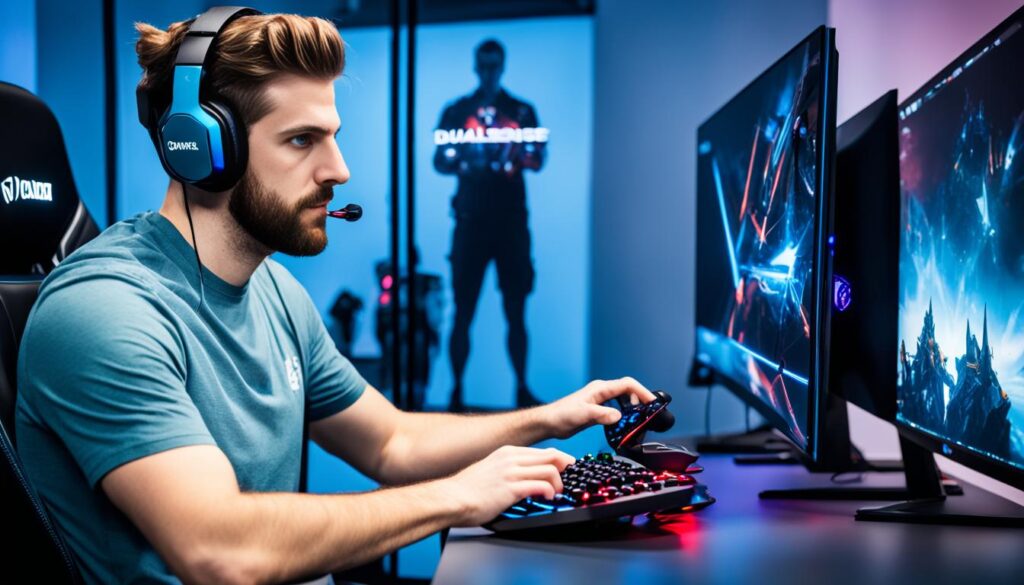
The DualSense works with many PC games, not just on Steam. Game developers are adding special features for the DualSense. This makes games more immersive and fun.
If you want to improve your PC gaming, get the Sony DualSense controller. It unlocks your games’ full potential with haptic feedback and adaptive triggers.
Prerequisites for Connecting the DualSense to PC
To use the DualSense controller on your PC, make sure you have the right gear. First, get a data-ready USB-C cable for a wired link between the DualSense and your computer. If your PC doesn’t have Bluetooth, you’ll also need a Bluetooth adapter for wireless connection.
Data-Ready USB-C Cable
The DualSense controller connects to your PC with a USB-C cable. But, it needs a data-ready cable, not just any USB-C. This type of cable lets you use the controller’s cool features like haptic feedback and adaptive triggers.
Bluetooth Adapter for PC
If your PC doesn’t have Bluetooth, you’ll need a Bluetooth adapter for wireless connection. Choose an adapter that supports Bluetooth 2.1 + EDR or higher for the DualSense controller.
With these items ready, you’re set to connect your DualSense controller to your PC easily.
https://www.youtube.com/watch?v=E1ezle4H3eo
| Feature | Availability on Connected Devices |
|---|---|
| Touch Pad | May not be available |
| Light Bar | May not be available |
| Motion Sensor | May not be available |
| Haptic Feedback | May not be available |
| Speaker | May not be available |
| Built-in Microphone | May not be available |
| Headphone Jack Audio | May not be available |
| Adaptive Triggers | May not be available |
Some DualSense controller features might not work fully on your PC. The controller can only connect to one device at a time. So, reconnect it to your PS5 console when you’re done with your computer.
How to Pair the DualSense Controller via USB
Connecting your Sony DualSense controller to your PC is easy with a wired USB connection. Just plug the USB-C cable into your PC and the other end into the DualSense controller. Your Windows PC will see the controller as a gamepad, and you’re set to play games.
Using a wired USB connection means you get a stable and reliable way to transfer data. This is great for gaming or any task that needs precise input.
The USB connection also means you don’t need extra adapters or software. Just make sure your PC has a free USB port, and you can plug in your DualSense controller right away.
After connecting, you can change button settings and adjust sensitivity on your PC. This lets you make the controller your own and improve your gaming.
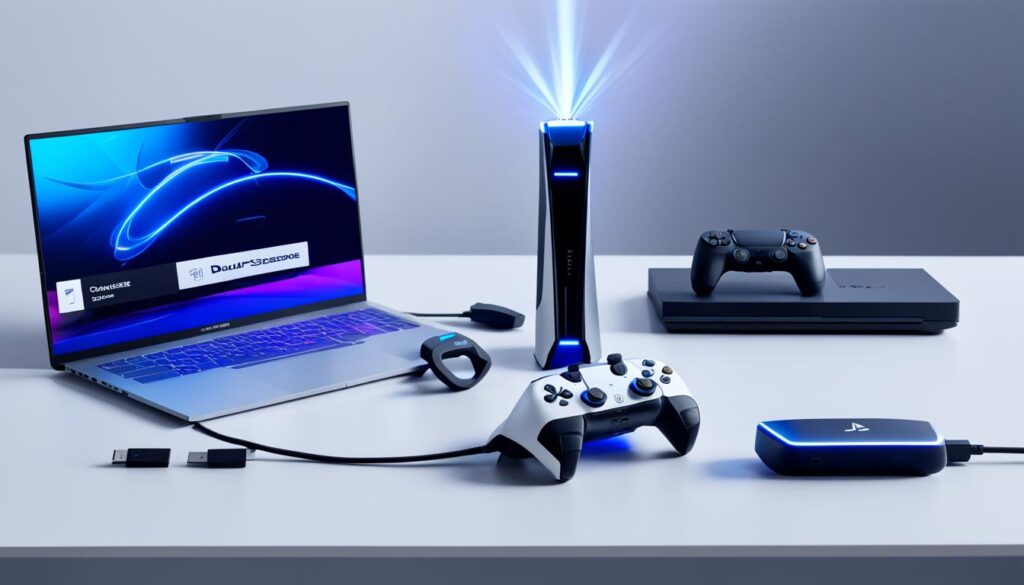
The DualSense controller is made for the PlayStation 5 but works great with PC gaming too. With a wired USB connection, you get to use its advanced features and design on your PC. This brings a new level of immersion and control to your games.
Pairing the DualSense Over Bluetooth
If you want a wireless setup, pair your Sony dualsense controller with your PC via Bluetooth. It’s easy and lets you use the controller’s best features, like the vibration motor and adaptive triggers, on your computer.
Step-by-Step Bluetooth Pairing Guide
To pair your DualSense controller over Bluetooth, just follow these steps:
- Go to your PC’s Bluetooth settings and click “Add Bluetooth or other device.”
- Choose “Bluetooth” from the list.
- Press and hold the PS and Create buttons on your DualSense controller until the light bar blinks, showing it’s ready to pair.
- Your PC will show the DualSense as a Bluetooth device. Pick it to finish pairing.
After pairing, you can use your DualSense controller wirelessly with your PC. This unlocks the full gaming experience.
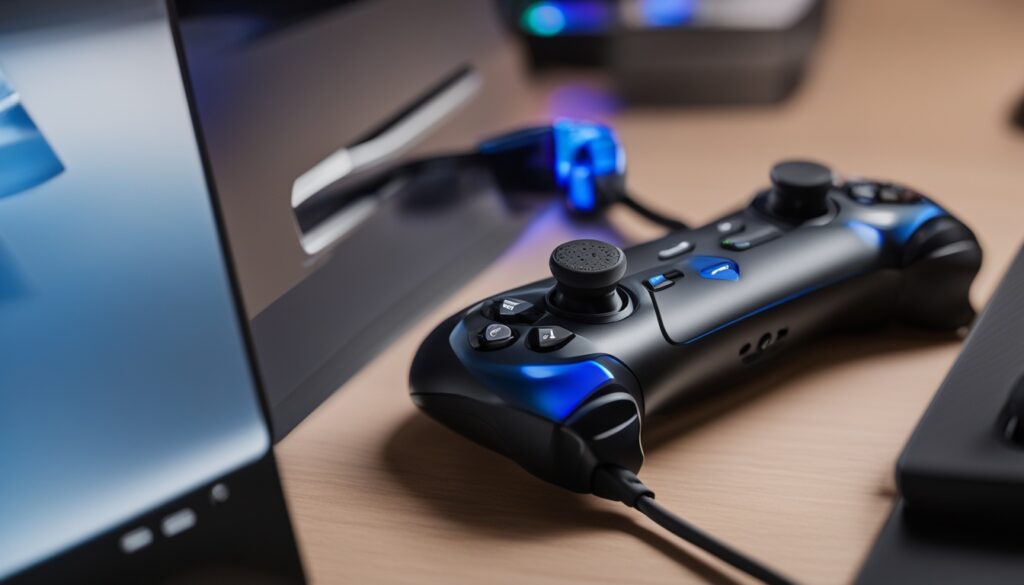
You can also connect your DualSense controller to your PC with a USB-C to USB-C or USB-A cable. This wired connection is stable and reliable, great for newer games that support the DualSense controller’s advanced features.
Using the DualSense controller’s Bluetooth, you get a wireless setup with top-notch capabilities. Whether you’re playing PC games or using the controller for other tasks, the dualsense pc dongle makes gaming smooth and immersive.
dualsense pc dongle: Wireless Adapter for Seamless Connectivity
For a smooth wireless connection, consider a dedicated dualsense pc dongle. This adapter lets you link your sony dualsense controller to your PC without using bluetooth. Just plug the dongle into your PC’s USB port, and it will connect with your DualSense controller. This gives you a reliable and quick wireless connection.
The dualsense pc dongle is great for gamers who love the DualSense controller’s comfort and precision on their PC. It makes connecting your controller easy, without the need for Bluetooth setup. This means you get a smooth and quick gaming experience every time.
One big plus of the dualsense pc dongle is its steady wireless connection. It’s better than Bluetooth, which can sometimes drop or lag. This dongle keeps your DualSense controller and PC connected well, perfect for fast-paced games.
Whether you’re playing the latest PC games or streaming PlayStation games with PS Remote Play, the dualsense pc dongle keeps your sony dualsense controller reliable and comfy. It’s a key part of your gaming setup.
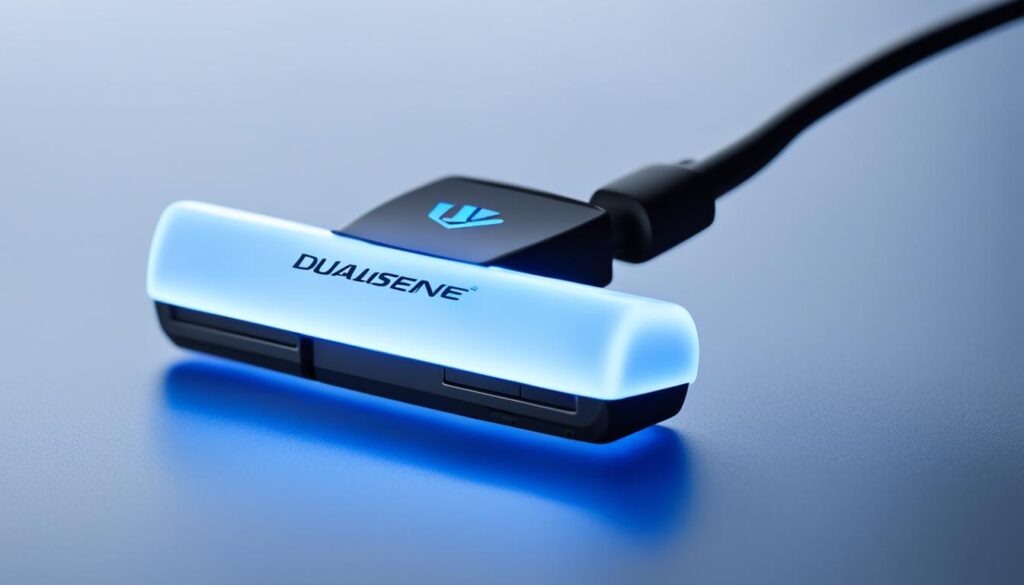
The dualsense pc dongle lets you use the DualSense controller’s advanced features like adaptive triggers and haptic feedback on your PC. This adds a new level of immersion and responsiveness to your games. It’s a must-have for any DualSense fan.
In summary, the dualsense pc dongle is a must-have for gamers who want to use their sony dualsense controller on their PC. It offers wireless ease and dependable connections. This makes it a great way to add this advanced controller to your gaming setup.
Compatible Games and Applications
The Sony DualSense controller works well with many games and apps on your PC. It connects to your PC for a better gaming experience through PS Remote Play. This lets you play games from your PlayStation 5 or PlayStation 4 on your computer. You can enjoy your favorite games on your desktop or laptop.
The DualSense also supports a variety of PC games. You can use it to control games that accept standard gamepad inputs. This gives you a responsive and immersive experience in many different games.
PS Remote Play for Streaming Games
The PS Remote Play app lets you stream games from your PlayStation 5 or PlayStation 4 to your PC. You can play your favorite PlayStation games on your computer. Use the DualSense controller to enjoy its cool features like haptic feedback and adaptive triggers.
Games with Generic Controller Support
Not just PS Remote Play, the DualSense also works with any PC game that accepts generic gamepad input. You can play a wide range of games, from big AAA titles to indie games. The DualSense enhances your gaming with its tactile feedback and responsive controls.
| Supported Devices for DualSense Connections | Key Features Available |
|---|---|
| macOS Big Sur 11.3, tvOS 14.5, iOS 14.5, Android 12, and iPadOS 14.5 | Wired USB-C connection, limited controller features |
| Windows PC | Wired USB-C connection, full DualSense controller features |
Some DualSense controller features might not work on all devices. The Create button, touchpad, light bar, haptic feedback, and adaptive triggers might not work the same on all devices. Also, you can only pair the DualSense with one device at a time via Bluetooth.
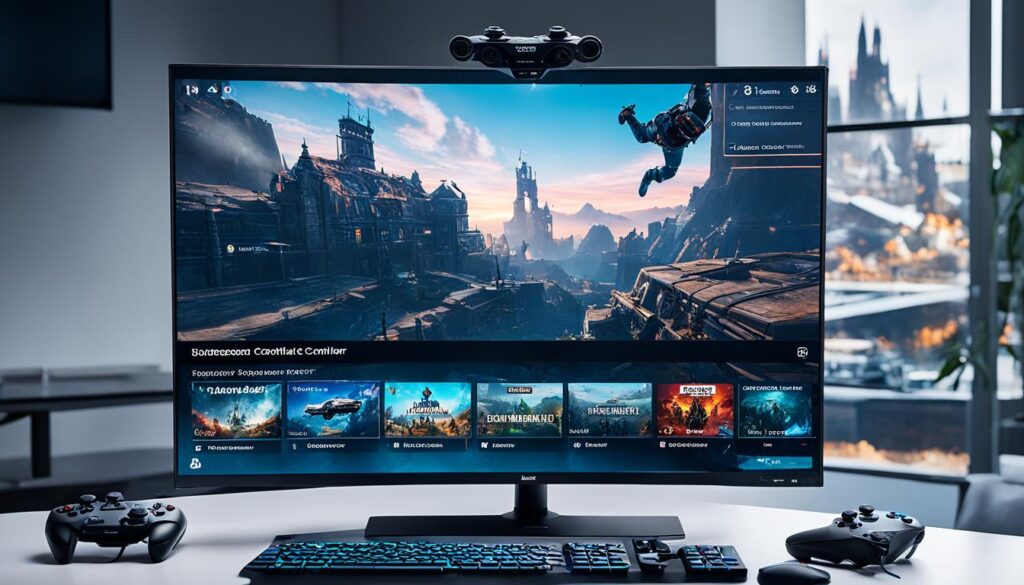
To reconnect the DualSense controller to your PlayStation 5, just use a USB cable and press the PS button. If you have trouble with the DualSense, try resetting it or check the PlayStation Repairs website for help.
“The DualSense controller’s seamless integration with PC gaming delivers an unparalleled experience, whether you’re streaming your favorite PlayStation titles or exploring a diverse library of games that support generic controller input.”
Reconnecting the DualSense to Your PS5
If you’ve been using the dualsense controller on your PC and want to connect it to your PS5, it’s easy. Just plug the dualsense pc dongle into your PS5 with a USB cable and press the PS button. This will reconnect the controller, letting you use it wirelessly with your PS5.
It’s a good idea to keep your PS5 and the DualSense controller updated for the best performance. If you run into problems, you can reset the controller or check the PlayStation Repairs tool for help.
You can connect up to 4 DualSense Edge controllers to one PS5 at once. But, the volume settings won’t work with a Pulse 3D headset and the DualSense Edge. Also, the controller can only connect to one PS5 at a time.
Charging the DualSense Edge controller while your PS5 is in sleep mode makes the light bar blink orange slowly. To charge it, just plug it into the PS5 with the USB cable. For wired use, go to Settings > Accessories > Controller (General) on your PS5 to pick how you want to connect.
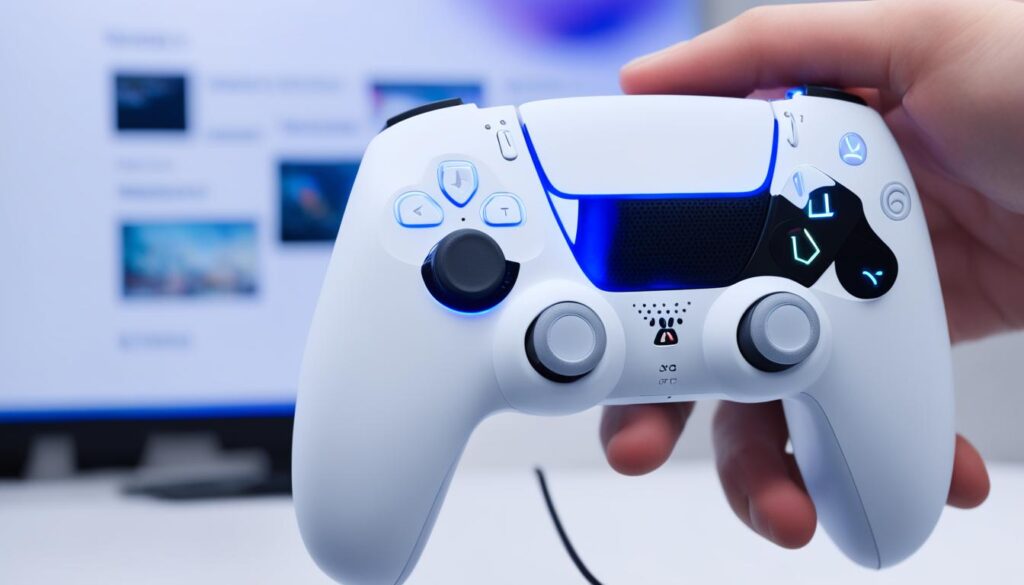
By following these steps, you can easily reconnect ps5 with your DualSense controller. This way, you can keep enjoying your games on the PS5 console.
Troubleshooting Tips
If you’re having trouble with your Sony DualSense controller and your PC, don’t worry. There are steps you can take to fix the issue. First, try resetting the controller by pressing the PS button and the Share (now the Create) button at the same time for a few seconds. This often solves connection or pairing problems.
Resetting the DualSense Controller
To reset the DualSense controller, just follow these steps:
- Find the PS button and the Share (Create) button on your controller.
- Hold both buttons down for 3-5 seconds.
- Let go when the controller’s LED lights start flashing, showing it’s reset.
After resetting, try connecting it to your PC again using a USB cable or Bluetooth. This reset should fix any software or connectivity issues you faced.
If resetting doesn’t fix the problem, you might need more help. Contact PlayStation support for further troubleshooting. Be patient and keep trying, as solving technical issues can take some time.
By using these tips, you can get your DualSense controller working well on your PC. This ensures a smooth and fun gaming experience. Enjoy your games!
PlayStation Support Resources
If you’re still having trouble with your DualSense controller, the PlayStation Support website has lots of help and resources. It has troubleshooting guides, FAQs, and ways to contact support if you need it.
The site is your go-to for all DualSense controller and PlayStation questions. It helps with pairing, connectivity, and using features.
For extra help, the PlayStation Support team is ready to talk to you. If online guides don’t solve your problem, you can call, email, or chat live for help. The team aims to give you top-notch support and make sure your DualSense controller works great.
So, if you need help with your DualSense controller or PlayStation stuff, check out the support website. They’re all about making sure you enjoy your sony dualsense controller and gaming with PlayStation.
Don’t hesitate to ask the PlayStation Support team for help with your dualsense pc dongle or other PlayStation gear and software. They offer lots of resources and advice to fix problems, learn new things, and keep your gaming smooth and fun.
Conclusion
The DualSense controller for the PS5 is a game-changer. It brings a new level of immersion and response to gaming. Now, PC gamers can enjoy its features too, making gaming more accessible.
Connecting it via USB or Bluetooth, the DualSense enhances your gaming setup. The Adapex R100 Pro adapter from BIGBIG WON is great for playing on different platforms. It’s a good choice for those who want a Bluetooth controller adapter.
But, some Bluetooth adapters and controllers might not work well together. Still, the DualSense can offer a smooth gaming experience if connected right. This guide shows how to pair your DualSense with your PC. It lets you fully enjoy its features, taking your gaming experience to the next level.
FAQ
What is the Sony DualSense controller?
Why should I use the DualSense controller with my PC?
What do I need to connect the DualSense controller to my PC?
How do I pair the DualSense controller to my PC via USB?
How do I connect the DualSense controller to my PC wirelessly via Bluetooth?
What is a dualsense pc dongle, and how does it help connect my DualSense controller to my PC?
What types of games and applications can I use the DualSense controller with on my PC?
How do I reconnect my DualSense controller to my PS5 console after using it with my PC?
What should I do if I encounter any issues while connecting or using my DualSense controller with my PC?
Source Links
- https://www.digitaltrends.com/gaming/how-to-connect-ps5-dualsense-controller-pc/
- https://www.playstation.com/en-au/support/hardware/pair-dualsense-controller-bluetooth/
- https://www.xda-developers.com/how-to-connect-ps5-controller-to-pc/
- https://www.makeuseof.com/how-to-use-ps5-controller-on-pc/
- https://www.playstation.com/en-us/support/hardware/pair-dualsense-controller-bluetooth/
- https://dualsensex.com/ps5-controller-on-pc/
- https://www.mysmartprice.com/gear/gaming/gaming-features/how-to-pair-playstation-5-dualsense-controller-with-pc/
- https://www.lifewire.com/use-dualsense-edge-on-pc-7642227
- https://www.lifewire.com/use-ps5-controller-on-pc-or-mac-5089439
- https://www.nytimes.com/wirecutter/reviews/best-pc-gaming-controller/
- https://www.techradar.com/best/best-pc-controllers
- https://www.playstation.com/en-us/support/hardware/pair-edge-controller/
- https://www.resetera.com/threads/need-help-setting-up-dualsense-ps5-controller-on-pc-steam.414414/
- https://foreverclassicgames.com/reviews/2022/7/adapex-r100-wireless-adapter-review
- https://steamcommunity.com/discussions/forum/11/3135044721698101673/?l=russian&ctp=2